


As a website owner, you definitely want the fastest website access speed possible.
And you hear about CloudFlare as one of the tools to help speed up the website.
So what is CloudFlare actually? How to install CloudFlare for your website?
Please continue reading. Because I will cover all those issues in this article.
You are using local hosting. In other words, the server on which the website is hosted is located in Vietnam. Consider using the CloudFlare service. Because it does not speed up your website. It even makes accessing the website slower.
Conversely, if you use hosting abroad, installing CloudFlare is almost mandatory. It helps you speed up your website. In particular, the impact of an undersea cable break on your website is also reduced.
What is Cloudflare?
Cloudflare can be understood as an intermediary proxy service. Normally when the website is accessed, it will connect directly to the server through that server’s IP. But your website uses Cloudflare’s services, all access must be processed through Cloudflare first, then to the real server.
Some advantages of Cloudflare:
- Provide stable intermediate DNS, fast update.
- Supports hiding the server’s real IP for better security
- Speed up your website by caching static files.
- Speed up your website using its built-in CDN feature
- Tracking and statistics of incoming visits to your website
- Reduce server load and bandwidth usage
- Better anti-spam thanks to bot detection and blocking
- Support advanced security features such as self-locking malware with WAF, anti-DDoS (paid plan only)
Maybe you are interested : How to use Cloudflare DNS without using CDN or WAF.
Install CloudFlare for website
First, you sign up for an account on CloudFlare ( https://www.cloudflare.com/sign-up )
After registering, click on the ‘ Add Site ‘ link at the top.

The Add Websites screen appears. Here you add the domain name of the website you want to install CloudFlare on. You can add multiple domains at once. Each domain name is separated by a comma. Then you click on the button Begin Scan
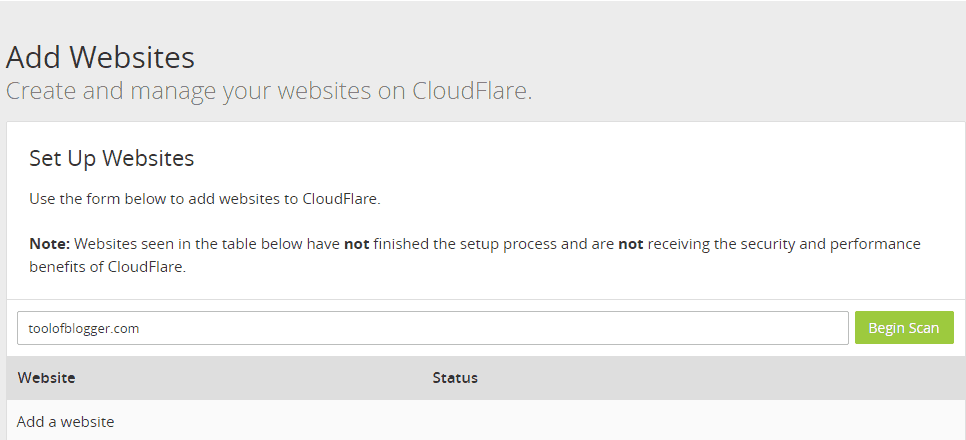
After CloudFlare has finished scanning the website, click the Continue Setup button to continue.
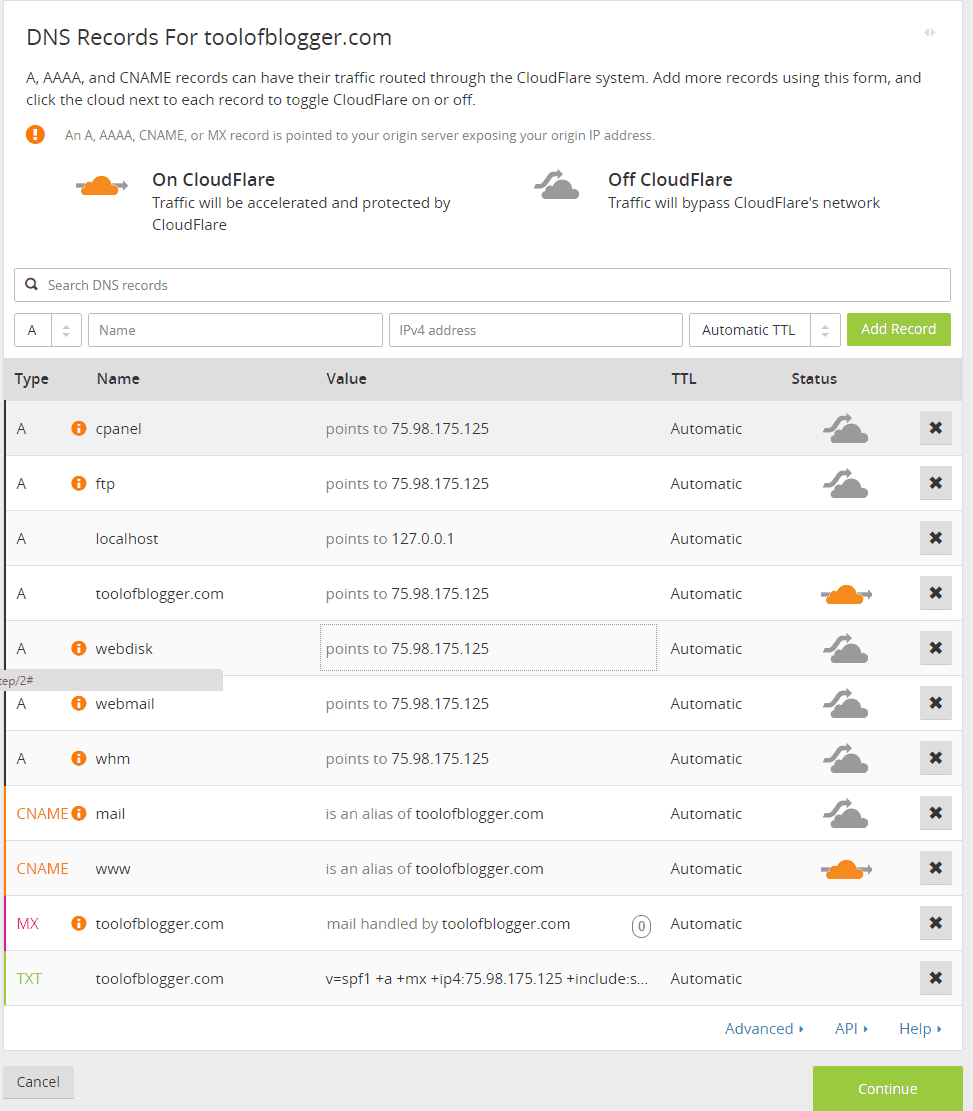
At this point, you will move to the stage of confirming the records for the domain name. You don’t need to change anything because of the standard installed logs. Click Continue to continue.
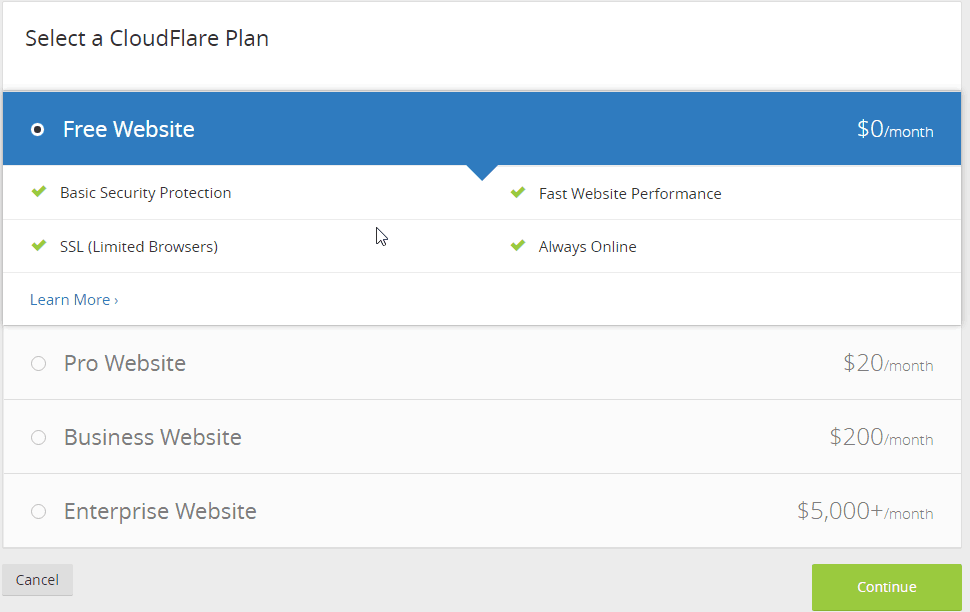
Go to the Plan screen, select Free Plan and press Continue.
On the next screen, CloudFlare provides 2 NameServer records. The next thing you go to the domain management page of the domain provider. You will change the nameserver to use 2 new nameservers.
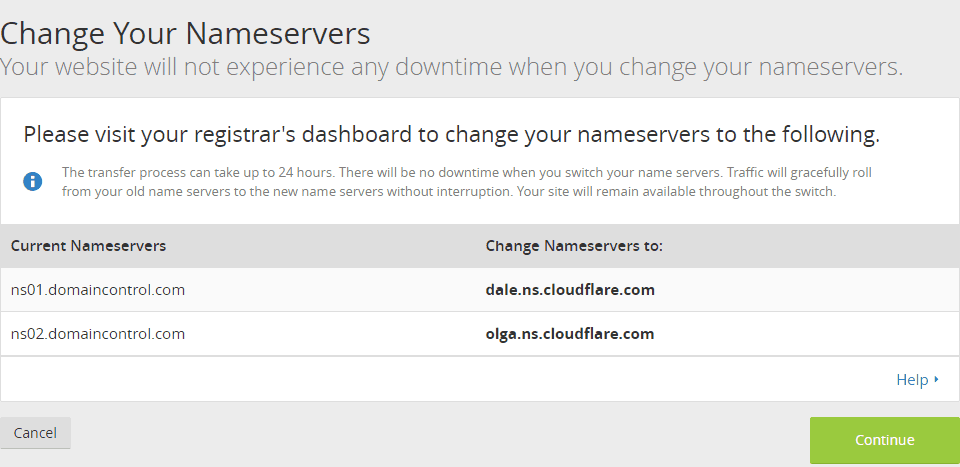
2 cloudflare nameserver names you need to update for your domain
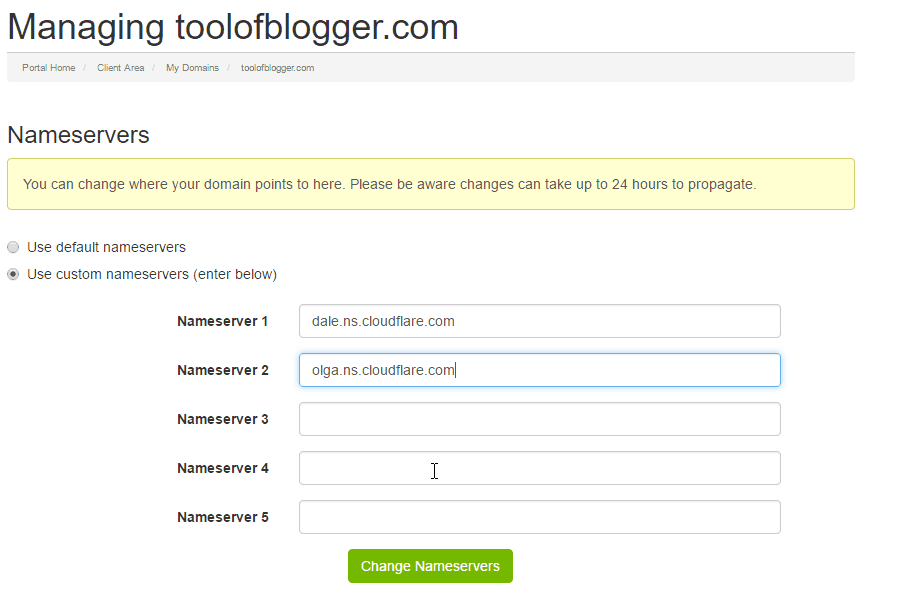
Example of changing nameservers in the domain management application. The interface changes for each domain registrar.
After the change is complete, wait for CloudFlare to detect that your domain has updated their DNS.
Thus, you complete the installation of CloudFlare for the website.
Epilogue
CloudFlare helps you to speed up your website, better protect your website and reduce your website bandwidth.
On top of that, it provides you with a free version package with all the basic features.
It’s hard to find a reason to stop us from installing CloudFlare.
Are you using CloudFlare? Please share your knowledge and experience, as well as difficulties you are facing with CloudFlare in the comments below.


