Most hosting providers now use Apache as their web server.
Compared to Apache, LiteSpeed web server has better load capacity and consumes less ram .
Note : Click here to check what your web server software is. If you want to find a hosting provider that uses LiteSpeed as a webserver, check out HawkHost . If you use VPS, refer to the series of articles using OpenLiteSpeed
Especially LiteSpeed web server has LiteSpeed Cache technology. According to the HawkHost blog , activating LiteSpeed Cache for WordPress can increase the speed by up to 33599%.
In this article, I will introduce more about LiteSpeed Cache and how to install LiteSpeed Cache for WordPress.
Let us begin with.
Contents
What is LiteSpeed Cache?
LiteSpeed is a server-level caching solution that helps your website handle large amounts of traffic. LiteSpeed Cache features the same as Apache mod_cache but implemented more efficiently
It works like Varnish Cache. But unlike Varnish Cache, LiteSpeed Cache is integrated in Litespeed webserver. It therefore handles static content more efficiently by eliminating a reverse proxy layer.
LiteSpeed Cache acts as an output cache for dynamic content. Cache occurs for a page when the first person visits it – that person can be you or anyone. Once cached, the page loads faster for everyone.
Instructions for installing LightSpeed Cache for WordPress
Method 1: Use .htaccess file
Add the following code to the .htaccess file located in the WordPress root directory
[crayon-5de37b499b075140794703/]This code will cache all pages in WordPress except login, admin and WordPress cron pages. The cache time will be 120 seconds.
Disadvantages of this method:
You cannot clear the cache manually. Cache is also not automatically cleared when posting or updating new articles.
Method 2: Use LightSpeed Cache plugin

With this plugin you have more control over the cache compared to the previous method. This is how you should choose.
Previously, the LiteSpeed Cache plugin did not have many features compared to a paid plugin like WP Rocket.
As a result, you often have to install many other plugins such as CSS/JS optimization plugin, image delay plugin.
Now everything has changed:
The team behind LiteSpeed Cache has worked hard to deliver powerful website acceleration features. LiteSpeed Cache now adds more acceleration features of other plugins.
At this point, there is no reason to spend money on a paid plugin for WP Rocket when LiteSpeed Cache can work even better than WP Rocket on hosting using LiteSpeed Server.
Some outstanding features of LiteSpeed Cache:
- Delayed loading of images/iframes
- Load CSS/JS Asynchronously
- Combine CSS, Javascript
- HTTP/2 Push for CSS and JS (preload CSS, JS when website uses HTTP/2 protocol)
- Clean up and optimize the database
- Browser Cache
- CDN . Support
How to use LiteSpeed Cache
First, install and activate LiteSpeed Cache
Next, go to Settings -> LiteSpeed Cache. You go to each tab and enable the cache features you want. Please test carefully with CSS/JS optimization features.

Note : You cannot use LiteSpeed Cache with other caching plugins such as W3 Total Cache, WP Rocket. Please remove before using LiteSpeed Cache.
This is the speed test result of a website I host on HawkHost . The website only installs the LiteSpeed cache plugin as the only plugin to help speed up the website:

Check if LiteSpeed Cache WordPress is working or not
In the browser you are logged in to, clear the cache.
Open another browser you are not logged in to and visit your website.
Right click and select an item like “ Inspect ”, then click on the “ Network ” tab. Select the first resource and see the Response Headers section as shown below

If you see “ X-LiteSpeed-Cache:miss ”. It means the page is cached.
Now you reload the page a second time. You will see “X-LiteSpeed-Cahce:hit” in the response header, then the page has been retrieved from the cache. So LiteSpeed Cache is working OK.

Epilogue
So, you already know how to install LiteSpeed Cache in WordPress. Your website now takes advantage of the caching power of LiteSpeed server.
Did you use LiteSpeed Cache? I’d love to hear your thoughts on LiteSpeed Cache.
If you found this article useful, don’t forget to subscribe to my blog to regularly update new articles. Thank you very much.
Icon made by http://www.flaticon.com/authors/eucalyp from www.flaticon.com
Update:
If you move your WordPress website to Hawkhost, then when you install the LiteSpeed Cache plugin you will get an error:
LiteSpeed cache has been disabled.

This error is because the website has not added LiteSpeed Web Cache on HawkHost’s server. This situation occurs when you move your website from another place to HawkHost’s shared host.
If you install the website from the beginning using Hawkhost’s Cpanel, by default the website will be added to LiteSpeed Cache.
To solve this problem:
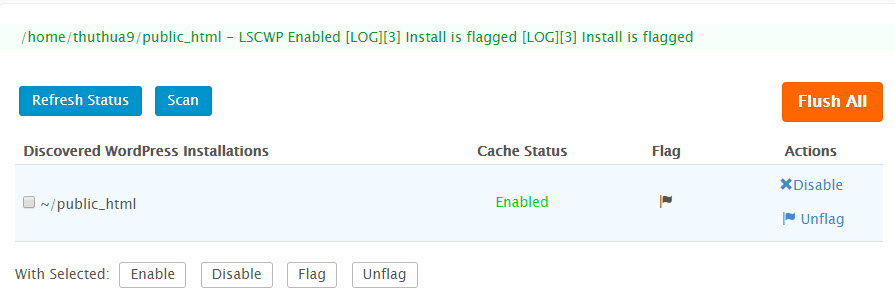
You access the LiteSpeed Web Cache Manager section on Cpanel. Click the Scan button to have the server scan your website.
And when the website has been cached, it will be blue like this: