


Want to learn how to create a free sales website?
I know you don’t have much capital to hire external website design companies. Luckily, WordPress and WooCommerce help you realize your dream of owning a website without spending too much.
The important point is that you are willing to take the time to learn how to use these tools if you are a pagan.
Indeed, WordPress is very famous as the popular blogging platform. But not stopping there, WordPress also makes it easy to create an online sales page by installing the Woocommerce plugin.
Woocommerce is a powerful plugin that turns WordPress into a quick and professional sales website builder.
Today’s article begins a series of articles to help you gain basic knowledge in using Woocommerce to create a sales page.
Like any other WordPress plugin, you must know how to install Woocommerce. But first, let’s see what Woocommerce gives you.
Contents
1. What is Woocommerce?
Woocommerce is a free plugin that helps you create a sales website using the WordPress platform.
Some key functions of Woocommerce:
- Supports a wide range of products such as regular format products, attribute products, affiliate products, and digital products.
- Support many online payment gateways such as Paypal, Credit Card, extended by plugin
- Support self-calculation of product tax or tax on orders.
- Shipping fee support
- Professional order management
- There are many themes and plugins available to help you create a professional shop
2. How to install Woocommerce
To install Woocommerce in Vietnamese, you must switch WordPress to Vietnamese. After installing Woocommerce will automatically use the language set up for WordPress.
You go to Settings -> General and select Vietnamese as shown below:

Now, you go to Extensions -> Install New . Type Woocommerce in the search box. Click Install and activate to install the Woocommerce plugin.

Once you activate the plugin, you will be taken to the initial setup screen for Woocommerce. Click the Start button to start setting up Woocommerce
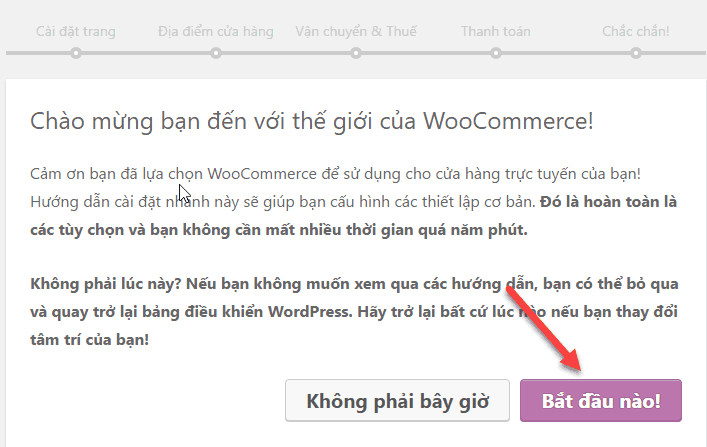
Next you will move to the setup screen of some basic pages of Woocommerce. By default, Woocommerce will create a number of pages such as Shop, Cart, Checkout… These pages form the core functionality of Woocommerce. And they are necessary for Woocommerce to work

Press the continue button
The next screen you set the store location. You enter the information to suit sales in Vietnam

In the shipping and tax settings, leave the default and press Continue. I will guide these settings in the next posts.
In the payment settings, choose Bank Transfer (BACS) Payments and Cash on Delivery. I will have a separate post about setting up payment payment.

Here we finish the basic setup with Woocommerce. On the next screen, select “Return to WordPress dashboard”.
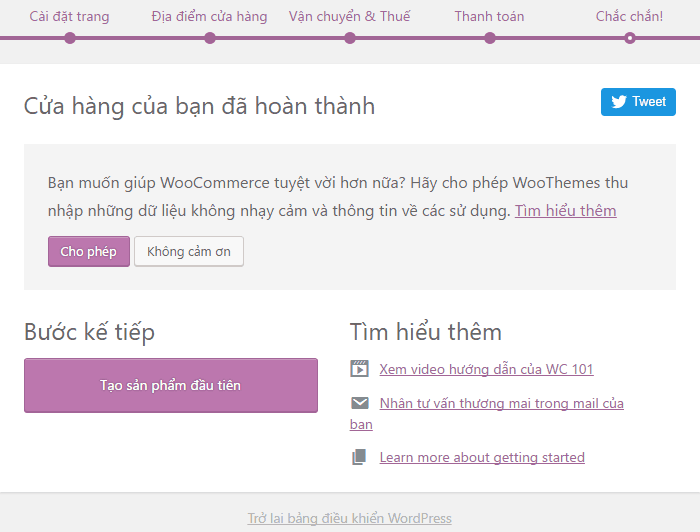
Now we will see the default pages that are generated when you install Woocommerce
3. Explore Woocommerce default pages
As you have seen in the configuration step of the installation, Woocommerce generates some default pages. You go to the page management to see the details of these pages.

The default pages include:
- Shop : This page will display a list of the latest products on the website and have pagination
- Shopping Cart : This page serves as the shopping cart page when customers want to manage their cart.
- My Account : This is the account management page when a customer creates an account on the website.
- Payment : Order payment page when the customer chooses to pay.
The store page you set up in Woocommerce -> Settings -> Products -> Display
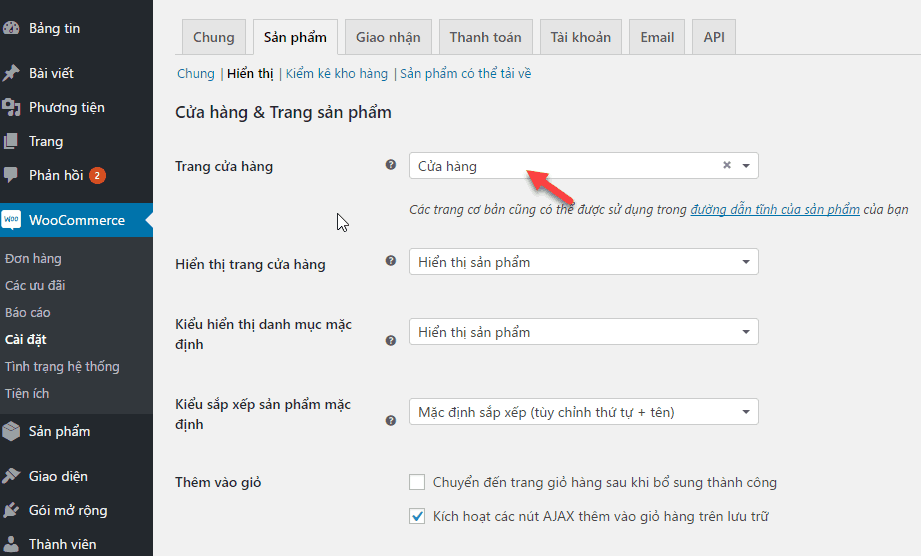
The rest of the pages all have their respective shortcodes, so they’re ready to go.
- Shortcode of Cart: [woocommerce_cart]
- My Account Shortcode: [woocommerce_my_account]
- Shortcode of Checkout: [woocommerce_checkout]
Recreate WooCommerce default pages
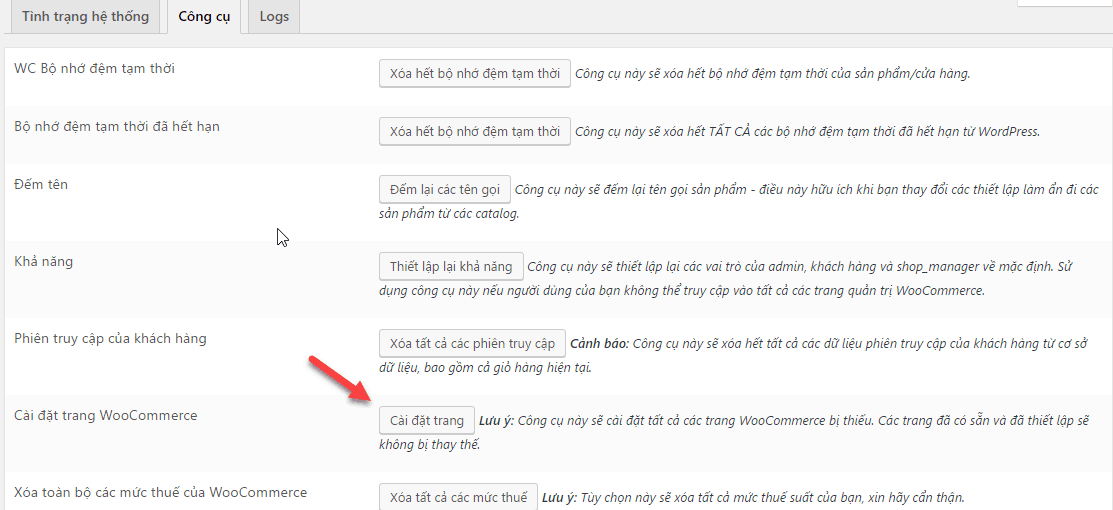
You accidentally deleted these default pages. Do not worry. Woocommerce has a way to help you recreate these default pages.
Go to Woocommerce -> System Status -> Tools . Click on the Woocommerce site settings button.
Epilogue
So you know how to install Woocommerce.
I know you’re excited to see how Woocommerce works.
But to test Woocommerce in action, you need to at least create the product. We will see the product creation process in the next article.
If you have any problems with the installation process, please leave a comment below.


