


After installing Woocommerce , you need to optimize the static path so that it is beautiful and SEO friendly.
In today’s post, I will share some tips related to static path optimization.
Change the static link for Woocommerce
To change the static path for Woocommerce, go to Settings -> Static Path
Here, you will see 3 sections as below:
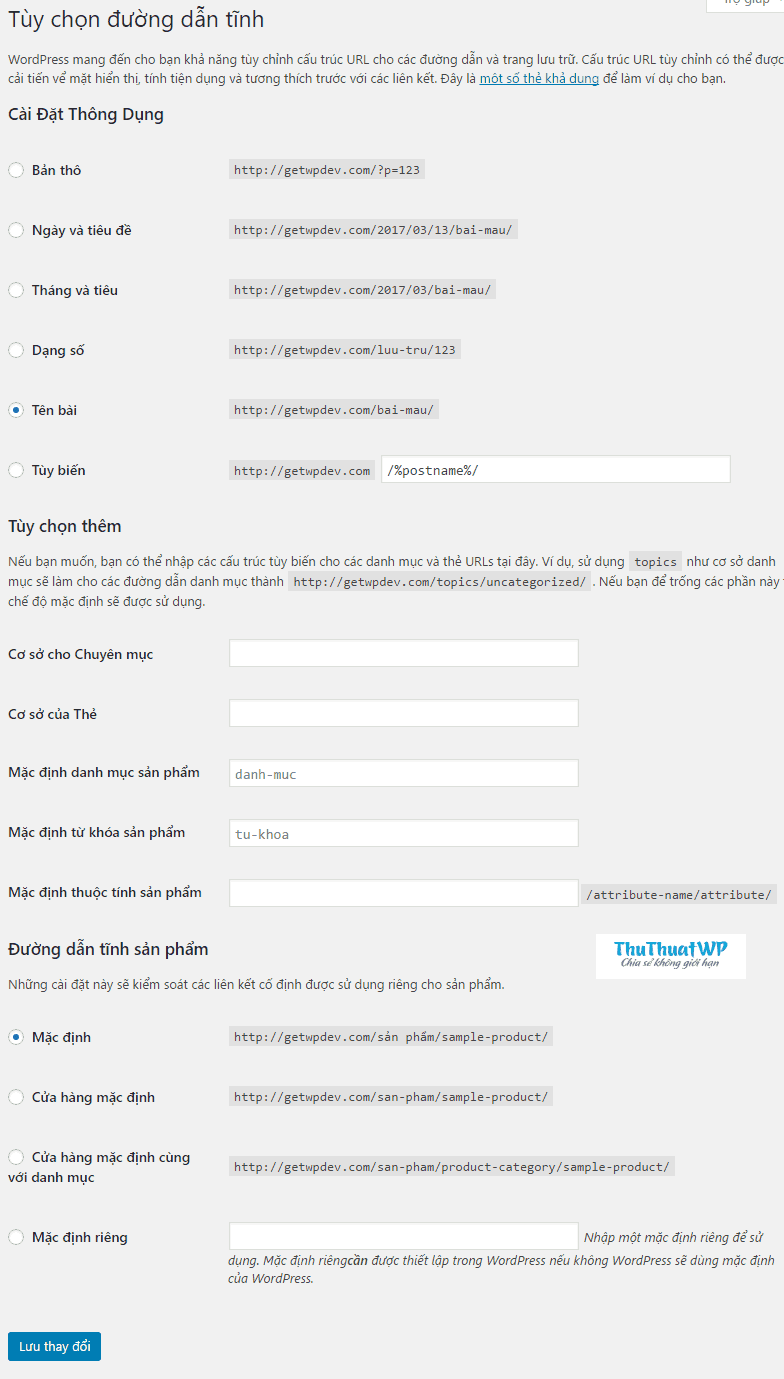
In the common settings, you will choose the title of the post. This is the recommended static path setup for every WordPress site.
The two sections below will apply to Woocommerce.
By default, the product category page will look like this: http://yourdomain.com/danh-muc/clothing/ . You will notice that the word category (product-category) will always be in the path.
The product detail page will look like this : http://getwpdev.com/san-pham/happy-ninja/ . Similarly, the word san-pham (product) will always be in the URL.
Now I will share 2 ways to set up static path for Woocommerce
Remove the word san-pham (product) and catalog (product-category) in the path
Update 2/11/2017: You should follow the how-to here .
To remove san-pham, add the following code to the functions.php file. Remember to create a child theme before making changes. Then go to Settings -> Static Path and click the Save Changes button.
|
1
2
3
4
5
6
7
8
9
10
11
12
13
14
15
16
17
18
19
20
21
22
23
24
25
26
27
28
29
30
31
32
33
34
35
36
37
38
39
40
41
42
43
44
45
|
//Remove product form url
function devvn_remove_slug( $post_link, $post ) {
if ( !in_array( get_post_type($post), array( ‘product’ ) ) || ‘publish’ != $post->post_status ) {
return $post_link;
}
if(‘product’ == $post->post_type){
$post_link = str_replace( ‘/san-pham/’, ‘/’, $post_link ); //Thay product bằng slug hiện tại của bạn
}else{
$post_link = str_replace( ‘/’ . $post->post_type . ‘/’, ‘/’, $post_link );
}
return $post_link;
}
add_filter( ‘post_type_link’, ‘devvn_remove_slug’, 10, 2 );
function devvn_parse_request( $query ) {
if ( ! $query->is_main_query() || 2 != count( $query->query ) || ! isset( $query->query[‘page’] ) ) {
return;
}
if ( ! empty( $query->query[‘name’] ) ) {
$query->set( ‘post_type’, array( ‘post’, ‘product’, ‘page’ ) );
}
}
add_action( ‘pre_get_posts’, ‘devvn_parse_request’ );
|
To delete the product-category, we use the WP Htaccess Control plugin . After installing and activating the plugin, you go to Settings -> htaccess control . Click on Remove Taxonomies and Author Base to see more options. Check the option Remove Base product categories . Remember to click the Save all changes button to save your configuration:

How to set the base of the product category page to the base of the product page.
Above, you already know how to remove the word san-pham (product) and list-muc(product-category) from the URL. Now we will set up completely different. Specifically, after you do the way I shared below, we will have the following path structure:
- Product page: http://yourdomain.com/san-pham
- Category page: http://yourdomain.com/san-pham/ten-danh-muc
- Details page: http://yourdomain.com/san-pham/danh-muc/ten-san-pham
First we create a product page with slug or path as san-pham

Then go to Woocommerce -> Settings -> Products -> Display. Select the Products page in the Shop Page option. Click Save Changes

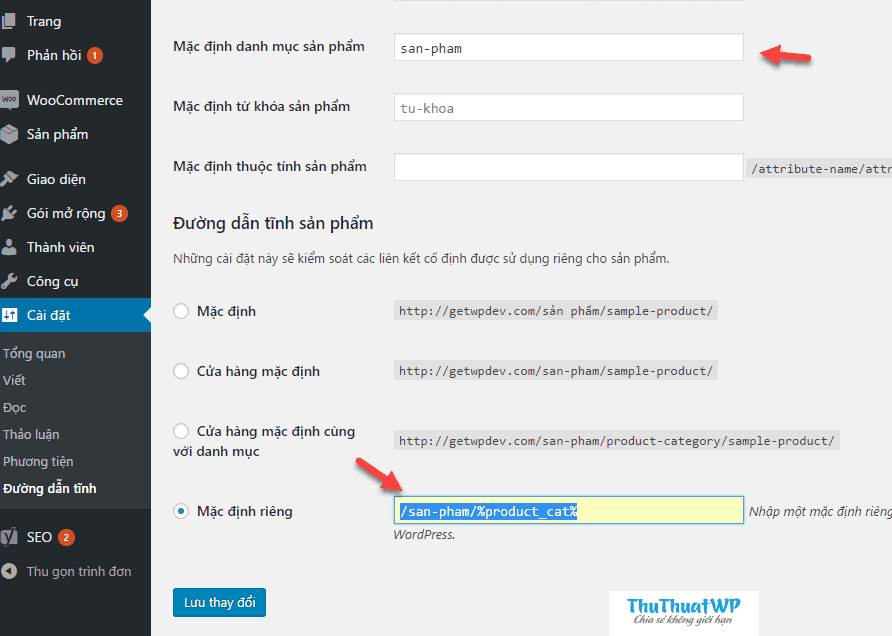
Next, you go to Settings -> Static Paths . In the additional options section, you enter the san-pham in the Default product category.
Scroll down, in the static product path, enter /san-pham/%product_cat%
Click Save Changes.
Finally, add the following code to the functions.php file:
|
1
2
3
4
5
6
7
8
9
10
11
12
13
14
15
|
add_filter( ‘rewrite_rules_array’, function( $rules )
{
$new_rules = array(
‘products/([^/]*?)/page/([0-9]{1,})/?$’ => ‘index.php?product_cat=$matches[1]&paged=$matches[2]’,
‘products/([^/]*?)/?$’ => ‘index.php?product_cat=$matches[1]’,
);
return $new_rules + $rules;
} );
|
So far, you have learned 2 ways to optimize static URLs for Woocommerce.
Let me know if you have any other good ways in the comments section below.
If you liked this article, don’t forget to subscribe to your email to receive notifications of new posts. Thank you very much.


