


Surely the thought of changing domain names gives you a sense of dread.
Especially when you spend a lot of time and effort to build a website to reach high rankings in Google search results. You don’t want that effort just because of changing the domain name that goes down the river, right?
But really, you don’t need to worry so much.
Today I will show you:
A step-by-step guide to switching to a domain name without losing SEO rankings.

Contents
- 1 Why change domain name?
- 2 Attention before transferring domain name
- 3 Steps to move to a new domain name
- 3.1 Step 1 : Register a domain name, point the domain name to hosting
- 3.2 Step 2 : Copy the entire content of the existing website to the new domain name
- 3.3 Step 3 : Perform a 301 redirect from the old site to the new site
- 3.4 Step 4: Create and submit sitemap for new website
- 3.5 Step 5: Fill in the Change of Address form in Google Search Console
- 3.6 Step 6: Add new website to Google Analytics
- 4 Epilogue
Why change domain name?
It’s best right in the process of choosing a domain name , you should choose carefully so that you don’t have to change the domain name later. But there are a few scenarios where you should switch to domains. Even switching to a domain name is the only solution in some situations.
Here are a few scenarios of transferring to a new domain name
1. Your domain name is penalized.
This may be because you use black SEO techniques that violate Google’s policies. Leads to Google will penalize your website. Recovery will be difficult and take a long time. Switching to a new domain is the best way out of this situation.
But you also note that there are a few errors you need to thoroughly fix before you think about moving to a new domain. Thin content is an example. When you switch to a new domain name, you may not be penalized. But then sooner or later you will be penalized again if you don’t clean up your thin content.
In case your website traffic is reduced for unknown reasons, the website may be affected by the automatic algorithm from Google. Changing the domain is also a suggestion for this case.
2. You change the brand
Rebranding is also a common occurrence for many companies and individuals. Moving to a domain is part of the rebranding process.
3. You get a better domain than your current domain
For example, you have enough money to buy a premium domain. Switching to a new domain saves you months or years to hit your traffic goals.
Attention before transferring domain name
Before you start moving to a new domain name, you need to back up your website. So you don’t have to worry if you accidentally take a step wrong. If you do not know how to backup, refer to how to backup using the UpdraftPlus plugin . Or backup manually .
You should continue to keep the old domain name. That way you can ensure that the redirection to the new domain name as instructed below will take place continuously.
Steps to move to a new domain name
Step 1 : Register a domain name, point the domain name to hosting
Registering a new domain name is natural. But if you have not done so, you can refer to how to register a new domain name in your Namecheap. After you have a domain name, you need to point the domain to hosting .
Step 2 : Copy the entire content of the existing website to the new domain name
There are many ways to make this work. But the fastest and popular way is to use the Duplicator plugin . Or using Updraft Migrate is also very good.
In particular, Duplicator has the option to update all existing URLs to the new domain. Duplicator also automatically updates all internal links. Too convenient, right?
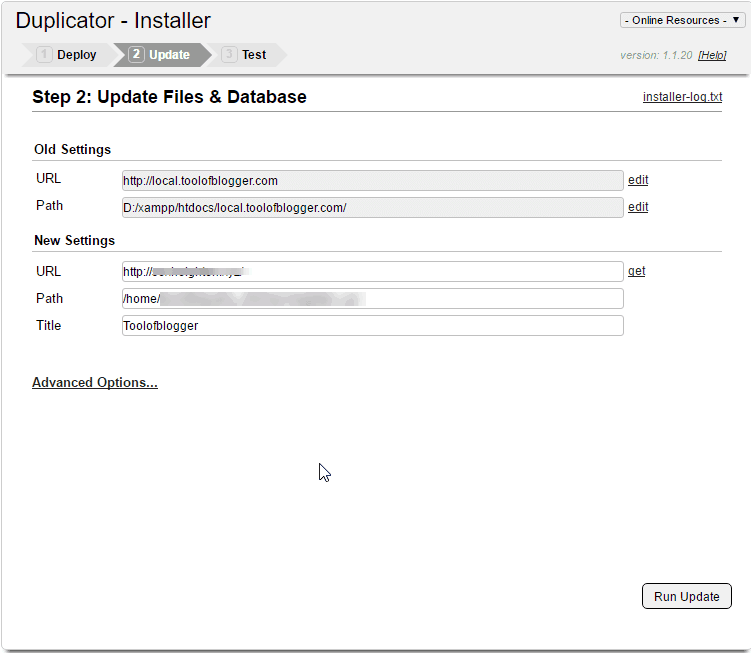
If you use another method without using Duplicator, use the Velvet Blues Update URL plugin to update the internal link.
As soon as you move your site to the new domain, you should test it out to make sure it’s working properly. You should use a broken link checker to make sure all links are working properly.
Step 3 : Perform a 301 redirect from the old site to the new site
This is the most important part to help you keep rankings when moving to a new domain. You need to do a 301 redirect from your site to the new site.
Implementing a 301 redirect helps to notify search engines and users that you have moved to a new domain. Thus, you ensure that all readers who visit the old website will be redirected to the new website.
More importantly, you push the entire SEO value from the old website to the new website.
Only point to note if your old website is penalized then it’s best not to redirect this redirect. Because doing so inadvertently you bring a disadvantage to the new website.
To perform the redirect, you need to use FTP to access the .htaccess file. This file is located in the root directory of the old website in the same location as the wp-config.php file.
Remember to back up the file before making any changes. Next, you add the redirect code at the top of the .htaccess file .
Specifically, you have 2 options when changing the .htaccess file. If you want to keep the URL structure, use the code like below.
RewriteEngine on
RewriteCond %{HTTP_HOST} ^oldurl.com [NC,OR]
RewriteCond %{HTTP_HOST} ^www.oldurl.com [NC]
RewriteRule ^(.*)$ http://newurl.com/ [L,R=301,NC]
Where oldurl.com is the old domain and newurl.com is the new domain.
If you change the URL structure, you need to manually change each individual link. If your website is large this can take a lot of time. This is the code you need to use for each post or page
RewriteEngine on
Redirect 301 /original-post http://newdomain.com/cool-new-post
Then remember to use the brokenlinkcheck tool to see if there are any broken links to fix.
For those of you who use VPS with Nginx as a web server, open the file /etc/nginx/conf.d/olddomain.com.conf then find and edit it like this:
server {
server_name .olddomain.com;
return 301 http://newdomain.com$request_uri;
}
Step 4: Create and submit sitemap for new website
You need to create and submit a new site to Google. Follow the detailed instructions here .
Step 5: Fill in the Change of Address form in Google Search Console
When you move to a new domain, you will lose some traffic to the new domain. Because Google takes time to index new domains.
You can speed this process up by notifying Google that one of your sites has moved to a new domain.
- Note : If you have not added a domain name to Google Search Console, refer to how to add a domain name to Google Search Console in this article .
In the admin page of the old domain’s Google Search Console, click on the cog icon. Here you click on Change of Address .

There are four steps to using this tool.

Because you have added a new website in the sitemap creation step above. So the drop-down menu definitely has a new website. You just need to choose a new website and you’re good to go.
The next two steps you just need to click the “Check” and “Confirm” buttons.
Finally, click the Submit button
Step 6: Add new website to Google Analytics
Remember to add the new website to Google Analytics . That way you can see the traffic report of the new website.
After completing the above steps you can inform your readers that you have just moved to a new domain name.
Epilogue
Moving a website to a domain name looks like a lot of confusing steps.
But if you follow this guide closely, it shouldn’t be too difficult even if you’re not a technical person. Plus, you don’t have to worry about losing rankings when you move to a new domain.
If you have any questions, leave a comment below. I will try to help you.
Note: icon made by Nikita Gobulev from ww.flaticon.com


