


Want to upload PDF files to your website?
Doing this in your WordPress website is pretty easy.
WordPress allows to download PDF and create download link.
I will show you how to do it in detail below.
Not only that, in today’s article I will introduce the best free solution to embed PDF files in WordPress website.
Download PDF files in WordPress Post and Page
The way to do it is very simple.
On the Post Editor screen, click Add Media

A popup screen appears. You can click on Select Files to select the file to download. Or a faster way is to drag the file directly here.

Now WordPress will upload the file to the website.
As soon as the upload is complete, you will see the thumbnail of the PDF file.
In the right column, you can enter the title, caption, and description of the file.

Click the Insert into Post button to add the PDF file to your article.
On the front-end screen you will see the link to download the PDF file.

Just like that. You have successfully uploaded the PDF file to your WordPress website.
How to embed PDF files in articles
These days, many people often choose Google Drive as a place to store documents.
I guess you are no exception.
If not, I recommend you choose Google Drive as the place to store the PDF file instead of uploading it directly to the host.
This way you will save space and bandwidth of the host if you want to build a document sharing website.
Embedding PDF files from Google into WordPress website is quite cumbersome due to privacy policy from Google Drive.
After experimenting with countless free and paid plugins to embed PDF files from Google Drive into WordPress, I found the Google Drive Embedder plugin.
I rate it as the best free solution to embed PDF files from Google Drive. It works very smoothly with no errors.
Not only embedding PDF files, you can embed audio even video files. All free. Sounds great, doesn’t it?
These are the steps to embed PDF files with the Google Drive Embedder plugin.
Step 1 . Install and activate the Google Apps Login plugin . You need this plugin if you want to use the Google Drive Embedder plugin.
This plugin is responsible for connecting your website to Google Drive.
Immediately after activation, you click Settings to start configuring the plugin.
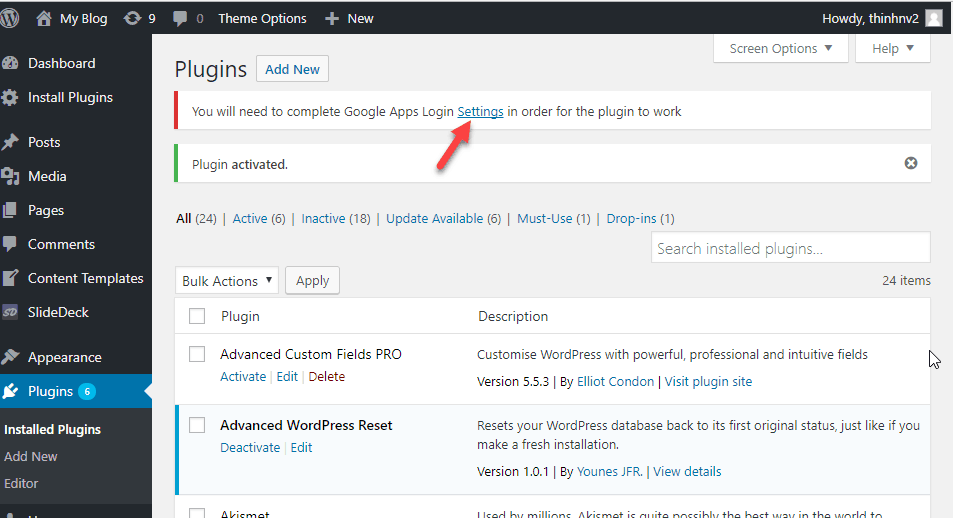
Step 2: Configure the Google Apps Login plugin
You will now move to the Google Apps Login configuration screen.
You need 2 parameters: client ID and client Secret to connect to Google Drive. Click on the link at the top to read the documentation on how to get these 2 codes.

The English document is a bit wordy. So here I will take pictures to illustrate how.
First you go to the console .
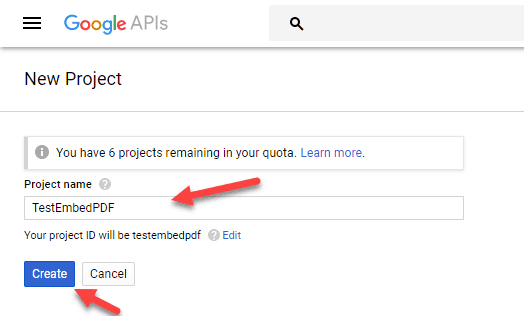
Select the drop-down box at the top. Click the + button to create a new project.

Enter the project name and click the Create button.
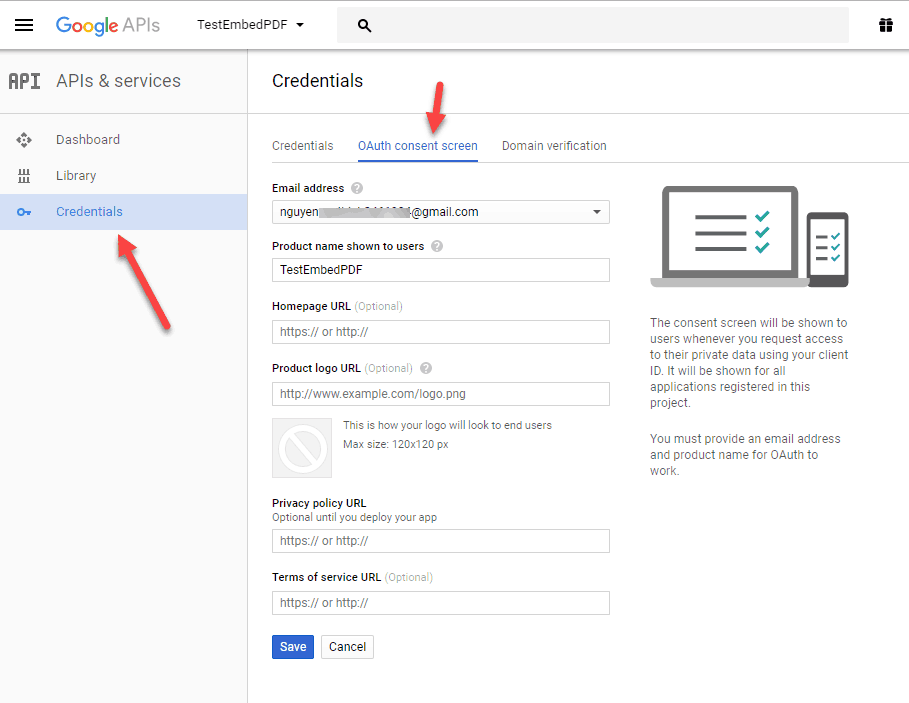
Click on Credentials. Select the OAuth consent screen tab.
Here you need to make sure the gmail address is the gmail address associated with the Google Drive account containing the PDF document you intend to embed.
Then, enter the product name. The remaining fields are optional you can ignore.
Click the Save button.
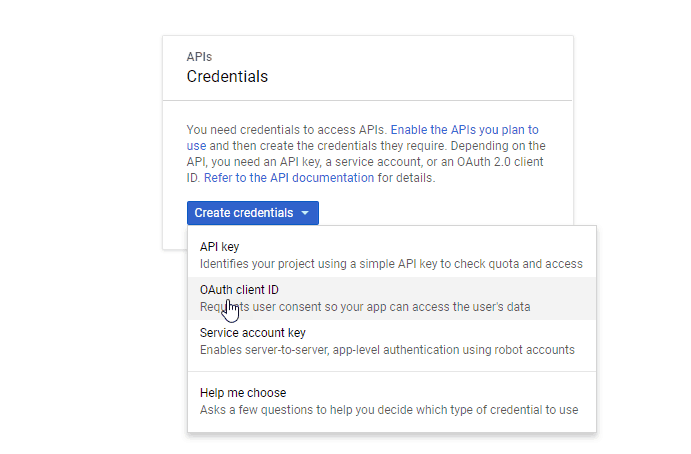
Next click on Create credentials. Select OAuth client ID.
On the create client ID screen, select web application. Enter the name. Two fields Authorized Javascript origins and Authorized redirects URIs, you enter as a photo (you can copy from the English document for quick). Just remember to replace your domain with yours.

After clicking the Create button, you will see 2 client ID and client secret codes. Copy each one and fill in the configuration screen of the Google Apps Login plugin.
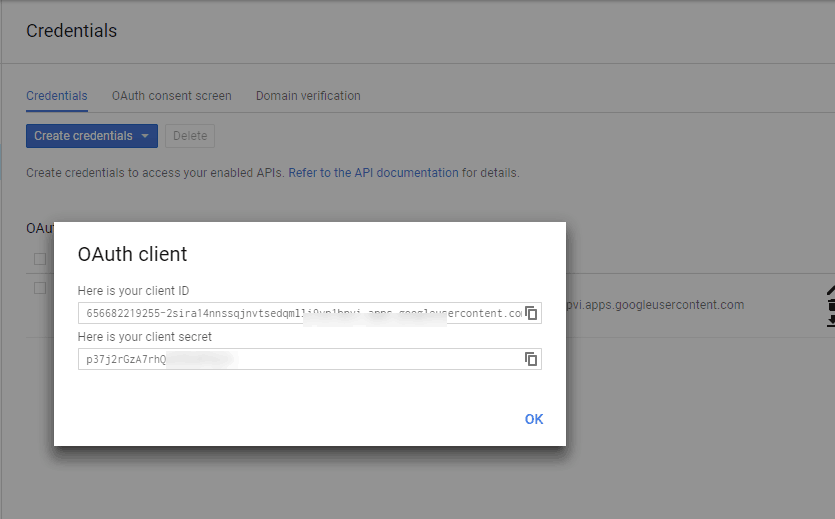
Next, you need to enable the Drive API and Calendar API. I will show you how to enable Drive API. The rest of you do the same.
First click on Library and enter Drive API in the search field. Click on the Google Drive API link.
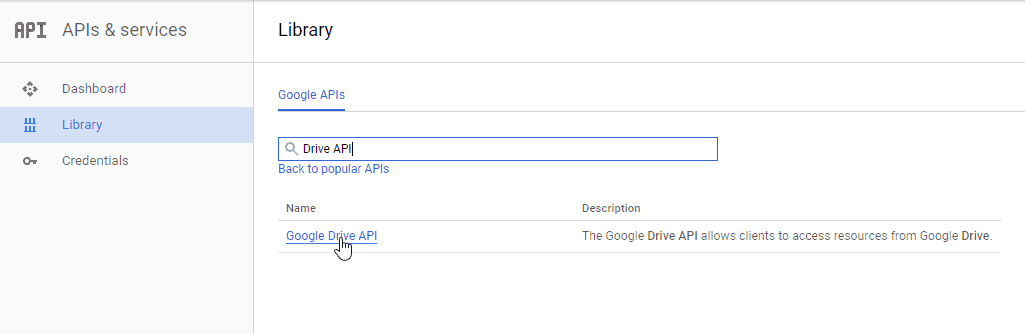
Click the Enable button.

Step 3 : Install and activate the Google Drive Embedder plugin . This plugin requires no configuration after activation.
Step 4: Embed the PDF file on the website
Before you embed a PDF file in your website, make sure that the file has sharing enabled.

Go to Post Editor screen (add post or edit post).
You will see a new button called Add Google File. Click on it.

A new block will be inserted into the post. In the block configuration panel on the right you will see a button called Select Google File

A window will appear. Click on the ‘ Click to authenticate via Google ‘ link to allow your website to access Google Drive.

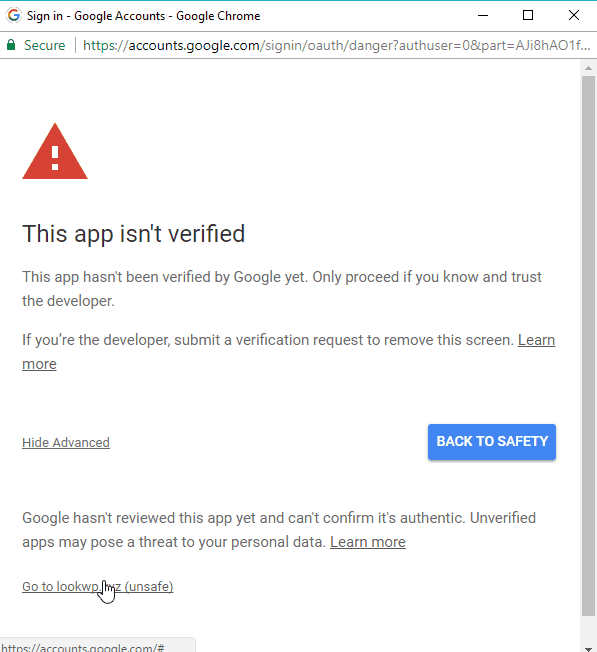
If you get the error this app isn’t verified as below, choose to ignore it by clicking on the link below. Since this is the app I created in the previous step, there’s no need to worry.
Now you just need to select the PDF file to embed. Use the search function to quickly find the file you want.

The plugin will generate shortcode like below:
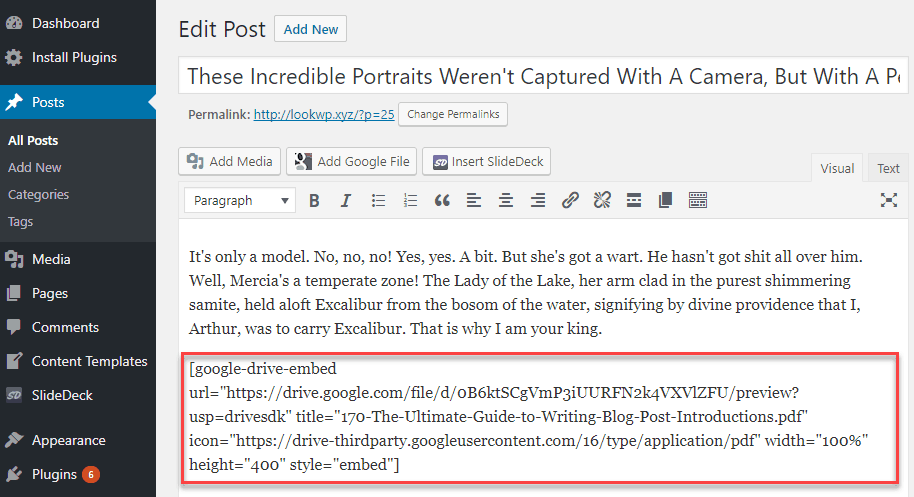
And here is the interface to view the PDF right in your website:
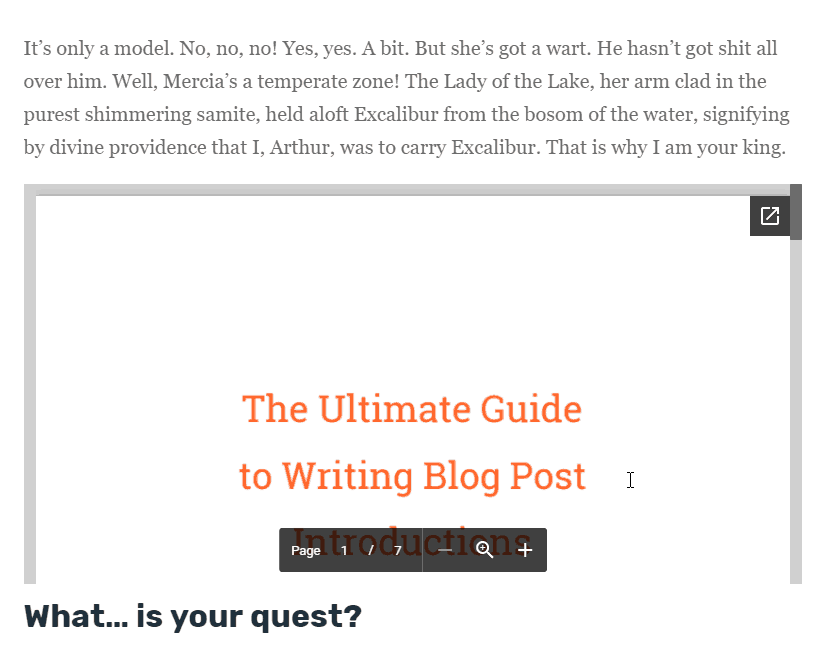
That is all.
You already know how to upload PDF files to the website.
More importantly, you’ve learned how to embed PDF files from your Google Drive account into your website.
I am very satisfied with the two plugins in this article. These plugins are very up-to-date.
This creates peace of mind when using. Because you also know that Google is very hard to change the algorithm for its products. This leads to integration problems if the plugin author does not regularly update the plugin.
How are you embedding PDF files in your WordPress website?
Please share your method in the comments below.


