


For a new website, you need to quickly boost your presence in Google search results.
There is a simple way. That is the XML Sitemap. So why should you create an XML Sitemap?
How to create XML Site map and submit to Google Search Console?
This article will answer those questions for you.
Contents
Why create XML Sitemap?
An XML Sitemap is a document that contains all the web pages within your website that you want to be indexed. It’s how you tell search engines all the pages that exist on your website.
XML Sitemap does not affect rankings in search results. But you should not take Sitemap lightly.
In fact, it makes it easy for search engine bots to navigate your website. Thus, the indexing will be more convenient. And the chances of your site being seen in the search results will be higher.
In general, with a Sitemap you ensure that the browser knows all of the pages in your site, including URLs that might not be detected by normal crawling.

How to Create XML Sitemap in WordPress
There are many ways to create XML Sites in WordPress. Here, I will use Yoast SEO plugin to create XML Sitemap. Sitemap generation is just one of many other useful features of the plugin. You can see the full tutorial on this plugin here .
First you install and activate the Yoast SEO plugin. By default, XML Site generation is disabled. You need to enable this feature.
You go to SEO -> Dashboard . Click on the tab called Features . And Click Enable in the Advanced settings pages section . Then Click Save Changes .

At this point, you notice that the SEO menu has many subsections including XML Sitemaps. Click on that item.
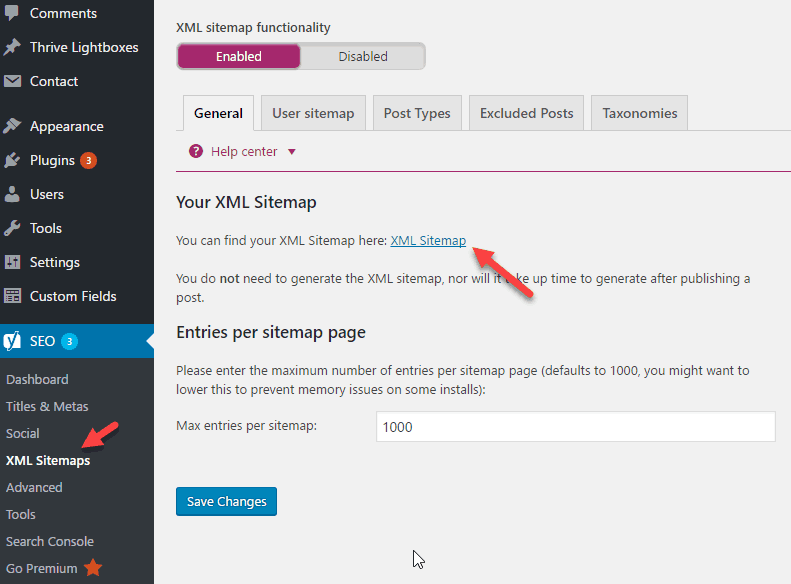
Next, click on the XML Sitemap link , you will see the XML Sitemaps that the plugin generates for you.
The plugin will generate a main Sitemap with the path yourdomain.com/sitemap_index.xml . This sitemap contains several subsitemaps. You just need to submit this main Sitemap to Google Search Console as instructed in the steps below. Google will read subsitemaps.
How to submit Sitemap to Google Search Console
Go to http://www.google.com/webmasters/tools and sign in with your Gmail account. Click Add Property to add your website to Google Search Console
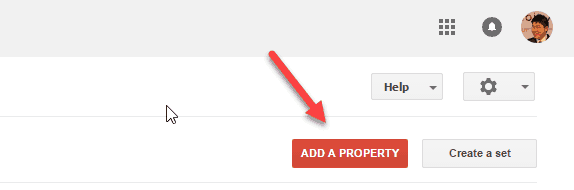
A dialog box appears. You enter your website address. After clicking the Add button , you will see a screen asking to verify that you are the owner of the website.
There are many ways to authenticate. But since you are using the Yoast SEO plugin, the fastest way is to copy the HTML Meta tag and paste it into Yoast SEO.
To do this, click on the Alternate methods tab. Select HMTL Tag. You will see the HTML Meta tag line.
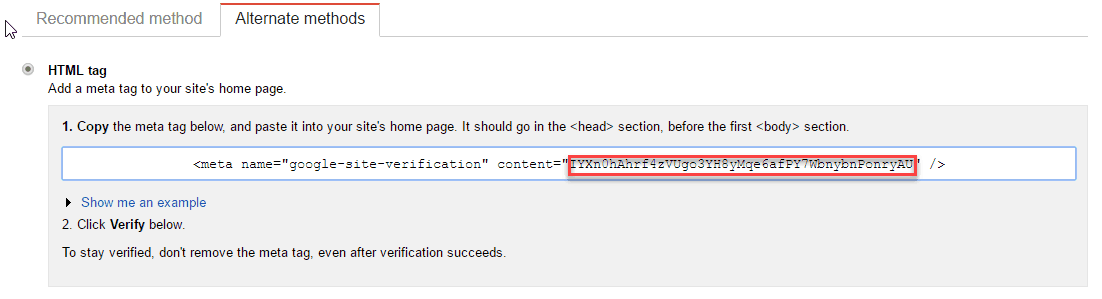
You copy only the text you highlight in the image (without the “bracket”). You leave the Google Search Console screen as it is because we’ll be back in a bit.
Now you access the WordPress admin page. And go to SEO -> Dashboard and click on Webmaster Tools tab . Paste the text you copied above. Finally click Save Changes

Return to the Google Search Console screen earlier. You click the Verify button. You will see a message like “ Congratulations, you have successfully verified your ownership of yourdomain.com ”. Click the Continue link to go to the Dashoard of Google Search Console.
You will see the Sitemap Column with no sitemaps in it. Click on it to go to the Sitemap page where you can add sitemaps. (You can also go to Crawl -> Sitemaps to submit the sitemap to Google).
Click on the red Add/Test Sitemap button and provide your sitemap URL. As I mentioned above, you only enter the main Sitemap.

Immediately after submitting Sitemaps to Google, it will be in a pending state. Google needs time to crawl your page. As soon as Google scans your page, you will see how many pages and images were submitted and indexed.

Epilogue
Now you know how to generate XML Sitemap and submit it to Google. Every time you create a new post, the Sitemap will be updated. Google will automatically be aware of the change. So you don’t need to resubmit the Sitemap.
And remember to visit Google Search Console often. It will provide a lot of useful information about your website. For example, your website rank, the number of clicks you get in Google search results.
If you have any questions, please leave a comment below
icon made by http://www.flaticon.com/authors/alfredo-hernandez from ww.flaticon.com


