


You are familiar with Post in WordPress .
Besides Post, another content type in WordPress is Page.
So what is Page? And how will you use the Page?
In this article, I will help you get a clear understanding of the role of Pages in WordPress. Besides, you also know how to create Page.
Come on, let’s get started.
Comparison between Page and Post
Alike:
They are all Post Type in WordPress. This is the type of content we can create and edit via the editor pane.
Besides, Post and Page both have features such as avatars (Featured Image, Slug, comment and so on.
Difference:
Does the post support Category and tags to classify Pages?
Page has hierarchical support, that is, there is a parent Page – Post child page does not.
When posted, Post will display automatically on Website, Page will not. To display the Page, you have to bring up the Menu or via the Widget
Posts show up in RSS Feed, Pages don’t
Uses
Post is suitable for articles that you want to categorize by category and automatically display on the website.
Pages are used to create static content. The general content changes little like: contact page, about page.
Therefore, the page cannot be classified using category or tag. The page creation and editing screen you will not see the category or tag like the Post side screen.
How to create a Page
Now you know the difference between Page and Post. We will move through how to create Pages in WordPress.
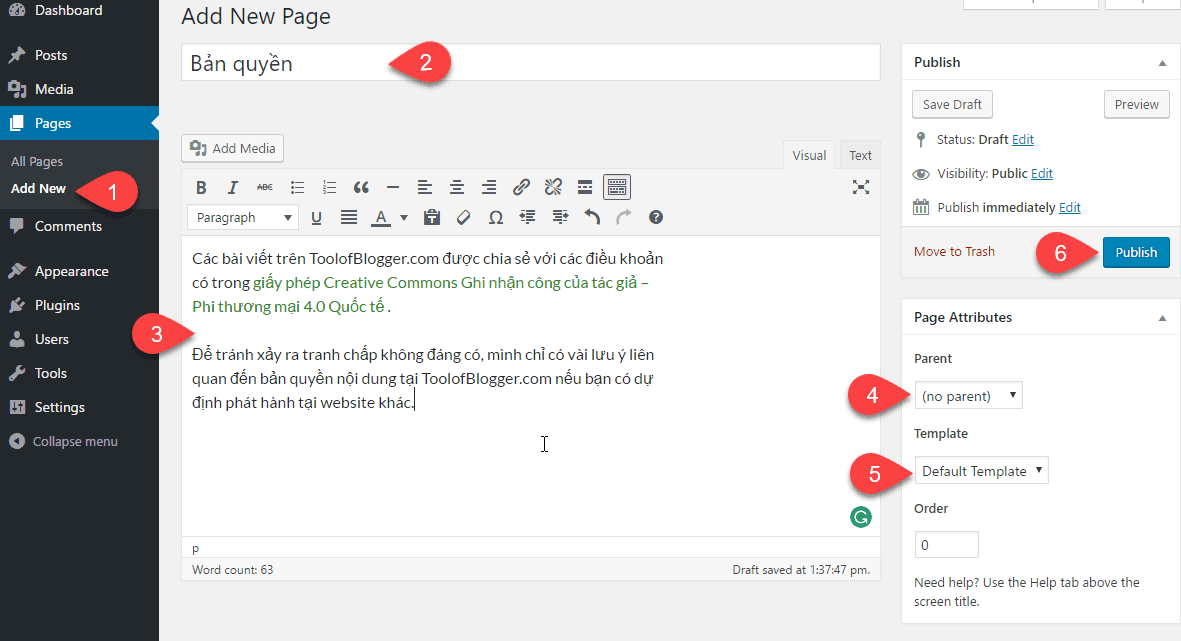
Page creation screen
1: At the admin page, hover your mouse over Pages, and select Add New
2: Type the title in the title input box
3: Type the content of the page in the edit box
4: . You can choose the parent Page if you want.
5: . If your theme offers more than one page template, there is a drop-down menu for you to choose from.
6: Finally when everything is done you can click Publish
Add comment section for Page
The feature is disabled by default for Page. If you want a Page to be allowed to have comments.
You can do the following:
On the Page editing screen, go to Screen Options -> Select Discussion. At Discussion select Allow comment.
Get a Page as the homepage content
You access Settings -> Reading. In the Front page displays section, select A static page, next in the Front Page section select the page you want to display the homepage. Finally Save.

Now your homepage displays the page content instead of the list of new posts as default

If you want an area to display a list of new posts, you can create an empty page. Then in the Settings -> Reading section, select the Page you just created in the Posts Page section.
Epilogue
So with this brief tutorial, you have differentiated between Post and Page. And when to use Post or Page
Besides, you also know how to create Pages and use Pages as homepage content.
If you have trouble, don’t hesitate to leave a comment below


