


Instructions to delete unused records in WordPress database.
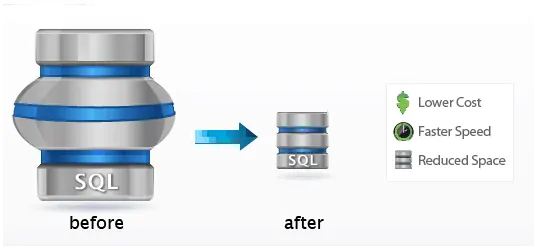
One of the important factors that determine the loading speed of a WordPress website is the database. Indeed, the more cumbersome and cluttered your database is, containing a lot of unnecessary information such as spam comments, drafts, automatic backups of articles, etc., the slower the web load will be. Therefore, you should regularly clean and rearrange everything to ensure the database is always clean, tidy and neat.
Explore more:
- Top 3 best plugins to clean up WordPress database
- Clean up WordPress database with WP-Sweep . plugin
Why delete unnecessary records in options?
Using well-known plugins like WP Optimize to clean up the database is something that almost every WordPress user knows. However, these plugins cannot help you to delete leftover records of WordPress themes and plugins that you have installed. Over time, the more plugins and themes you install, the greater the number of these records generated in the options table . Although you may have removed these plugins and themes after that, their records are still stored in the database options table. They make your database bloat quickly and make it slow.
I am a speed lover. Therefore, I always find the optimal way to make my blog reach the highest speed, bring the best experience for users. After a while of searching and researching, I finally found a great plugin that can help me thoroughly solve the above problem. Well, if you don’t know, I’m talking about the Clean Options plugin .
Although this plugin has not been updated for more than 11 years, it still works great on the latest version of WordPress . Its only function is to help you find unused records in the database’s table options and allow you to delete them to reduce database size and optimize speed.
Delete unused logs with Clean Options plugin
1. Install and activate the Clean Options plugin from the WordPress.org plugin library. This plugin has not been updated for more than 11 years, so you can’t install it directly, you have to download the .zip file and then upload it.
2. Go to Tools => Clean Options => Click the Find Orphaned Options button .

3. Wait a few seconds, you will see a list of “useless” records in the database options table. Select the records you want to delete, then click the View Selected Options Information button .
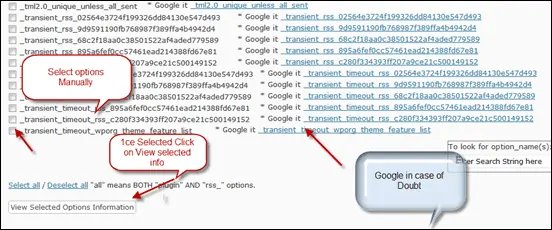
Note : you have to select the records manually, can’t select Select all . For 2 reasons:
- If you select Select all , you cannot view information about the records nor delete them. You should only select about 20-30 records per delete.
- Some records of used plugins and themes are also listed in this list (misidentified by the plugin). Therefore, you need to select manually to avoid deleting those records that cause website errors.
Click the Google it… button corresponding to the record to determine which plugin or theme the record belongs to (in case you’re not sure).
4. Select Yes, Remove ALL of these options from the wp_options table . Then, click the Submit button to delete the selected records. Do the same until all unnecessary records are deleted.

It’s simple, right? I have used this plugin and have reduced over 1MB of database for my WP Basic blog . If you haven’t tried it yet, what are you waiting for? Good luck!
Some other plugins
In addition to Clean Options , you can use the Advanced Database Cleaner plugin to do this. This can be seen as the most comprehensive WordPress database cleaning and optimization plugin available today.
Explore more:
- Advanced Database Cleaner – the best database cleaning plugin
- Instructions for using the Advanced Database Cleaner plugin
If you liked this article, follow my blog to regularly update the best and latest articles. Thanks very much. 🙂


