


According to KissMetrics, 47% of users expect your website to load in 2 seconds or less.
Google has long clearly stated that website speed is one of the 200 search results ranking factors. Matt Cutts from Google explained it well in this video.
Neil Patel, a marketing guru in an article has proven that website load time affects rankings in Google.
Brian Deal, the world’s leading SEO expert, in his famous article also proved that Page Loading Speed is a ranking factor that the two top search engines, Google and Bing, are using.
Obviously, website speed is an important factor contributing to a successful website. A website with a crawling speed is unlikely to succeed. Because both users and search engines stay away from such sites. No matter how great its content.
Today, we are going to look at all the ways you can speed up your WordPress website. With the ways shared in this article, your website speed will definitely improve a lot.
Hosting and themes are prerequisites for a website with optimal speed.
About hosting you can refer to Hawk Host . Hosting service has many powerful features for very good speed. You can refer to your Hawk Host series of articles about hosting services here.
Regarding the theme, you should choose a theme with a simple design and good code. For example, themes using the Genenis framework or themes from MyThemeShop .
Make sure you use GTMetrix or Pingdom tools to test the demo sites before deciding to use any theme. Also don’t forget Google’s structured data testing tool to make sure the theme is structured data correctly.
If you don’t know about Structured data and its importance to SEO, read this article .
Before getting into the website acceleration tips, I want to show some speed up results for a recent demo website of mine using GTMetrix and Pingdom .
Read more : Detailed guide on how to monitor WordPress website
Results on GTMetrix before optimization
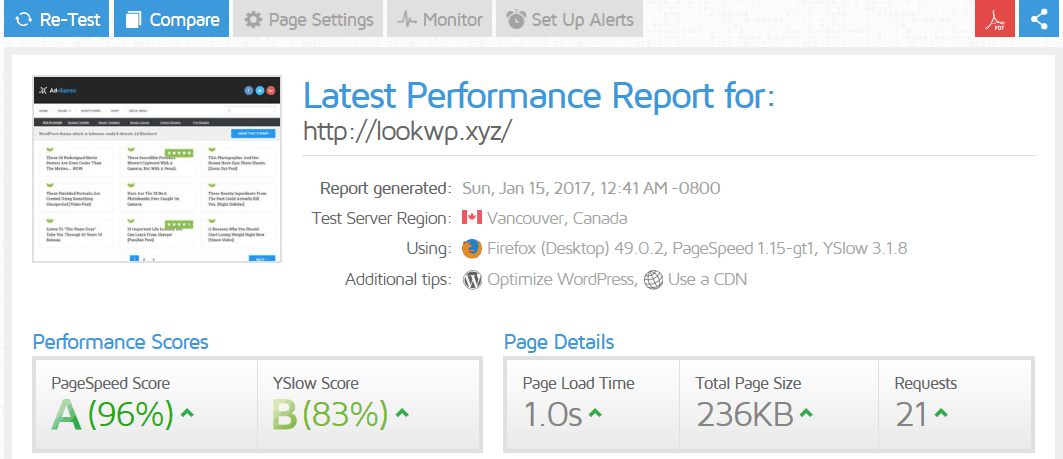
Speed after optimization
Now, let’s get into the tips to speed up WordPress.
Contents
- 1 1. Remove unused plugin
- 2 2. Use cache creation plugin
- 3 3. Image optimization
- 4 4. Minimize redirects
- 5 5. Lightweight social sharing plugin
- 6 6. Defer parsing of Javascript
- 7 7. Add Expires Headers
- 8 8. Remove Query Strings from Static Resources
- 9 9. Run WP-Optimize to remove junk files
- 10 10. Turn off trackbacks and pingbacks
- 11 11. Delete unused themes
- 12 12. Cache gravatar images
- 13 13. Combine external CSS and Javascript
- 14 14. Reduce the delay when redirecting
- 15 15. Use a content delivery network (CDN)
- 16 16. Using Gzip
- 17 17. Use Lazy Loading
- 18 18. Limit post revisions
- 19 19. Prevent image hotlinking
- 20 Fix bug: Parallelize downloads across hostnames & Serve static content from a cookieless domain
- 21 Epilogue
1. Remove unused plugin
Each plugin you install will increase the loading time of your website. Therefore, you should delete the plugins you do not need. Note that if you have deactivated a plugin, delete it as well. This helps your website avoid being snooped by hackers.
Plus, you need to find the plugin with the longest load time. From there you can delete or replace them. At least you figure out how to minimize their impact on your site’s spread.
To find the plugin with the slowest loading speed, you can use the P3 plugin . After installation, go to Tools -> P3 Plugin Profiler -> Start Scan, select Auto Scan . The results tell you which plugin takes the longest to load.
A few tips:
- Deactivate and delete unused plugins
- Remove plugins you only use at a certain time, like this P3 plugin. When you need to reinstall.
- If you need to replace the plugin, look for a lighter plugin.
- Run P3 every time you install a new plugin to assess its impact on site speed.
2. Use cache creation plugin
Using a caching plugin is the fastest way to improve page load speed. As you know every time the browser requests a web page, the website will access the database and execute PHP code to generate the results returned to the browser.
When you use the caching plugin, it will display the cached content to the user. Can you guess what the display speed is? Almost immediately. Because it simply no longer has to access the database and execute the normal PHP code.
Besides, many plugins also pack a lot of features to improve speed such as delayed loading of images, compression and optimization of static files such as CSS, Javascript or HTML.
A few caching plugins you should refer to:
- WP Super Cache : a free plugin suitable for shared hosts
- W3 Total Cache : Free plugin better suited for VPS
- Cache Enabler : a simple and lightweight KeyCDN cache plugin
- LiteSpeed Cache : specialized cache plugin for LiteSpeed servers like Hawk Host
- WP Rocket : Paid caching plugin and also the best caching plugin. It packs the most website speed-boosting features. Just install this plugin alone, the website has improved significantly. You do not need to install additional plugins.
3. Image optimization
Images take up the majority of the page size of a web page. If you do not optimize images, the pagesize will be very large. Of course this reduces the loading speed of the website.
Luckily, there are many free and paid plugins to help you optimize your photos. Besides, you can also choose an online image compression service. This method is manual and relatively laborious if you have a lot of photos.
I summarize all the image compression solutions below for your convenience and choice:
- ShortPixel
- EWWW Image Optimizer
- Compress JPEG & PNG (free for up to 500 images)
- WP Smush
- Compressor.io
- TinyPNG
- Optimus Image Optimizer
- Kraken Image Optimizer
Personally, I currently invest in the ShortPixel service and am very satisfied with the image compression quality, as well as the price. I find it to be cheap if you want to invest in a paid service for your website. As I only spent about $ 9 and compressed more than 10,000 images, which is quite comfortable.
Tips to improve scores on GTMetrix
In case, you use the free plugin and do not get the maximum score for this section, you can switch to the manual fix method. You download optimized images from GTMetrix and upload them to the website.

Now find where the unoptimized image is and replace it with the optimized version of GTMetrix. This method is a bit laborious, but free plugins do not optimize images to the fullest extent. Because if you want the most effective image compression then you have to use the paid version. Regarding the fee, as I said ShortPixel is a good suggestion.
4. Minimize redirects
If you change your domain name from http to https, or from www to non-www, but you still have a link on your site pointing to the old version. Such links will cause redirects. The redirect is also a factor that reduces the speed of the website.
To avoid this situation, you must have a stable link format from the start. Specifically, right from the moment you install WordPress, you configure the default URL in Settings -> General . The image below is an example of the Vietnamese interface. But you probably know this configuration.

But if the site has redirect links, then you have to change all the links in the pages and posts to the URL type you have configured.
Better Search & Replace Plugin plugin will help you find old links, and replace them with new domain form. Before embarking on changes remember to back up the database.
Using a plugin that allows guests to share your website on social networks is quite common these days. But you need to know, these plugins can make WordPress sluggish.
You can check the Water tab in GTMetrix to see if your social plugins are slowing down your site. If so, here are a few relatively lightweight social sharing plugins you should use:
- Social Media Feather
- WP Social Sharing
- Genesis Simple Share is for anyone who uses the Genesis theme
6. Defer parsing of Javascript
This is an entry in the GTMetrix report. If your score for this section is very low. You can use Speed Booster Pack .
Speed Booster Pack is the best tool available to help you improve your results on GTMetrix. Really it is a marked improvement in site speed.
After installing the plugin, go to Settings -> Speed Booster Pack , you should select all options to achieve the best performance
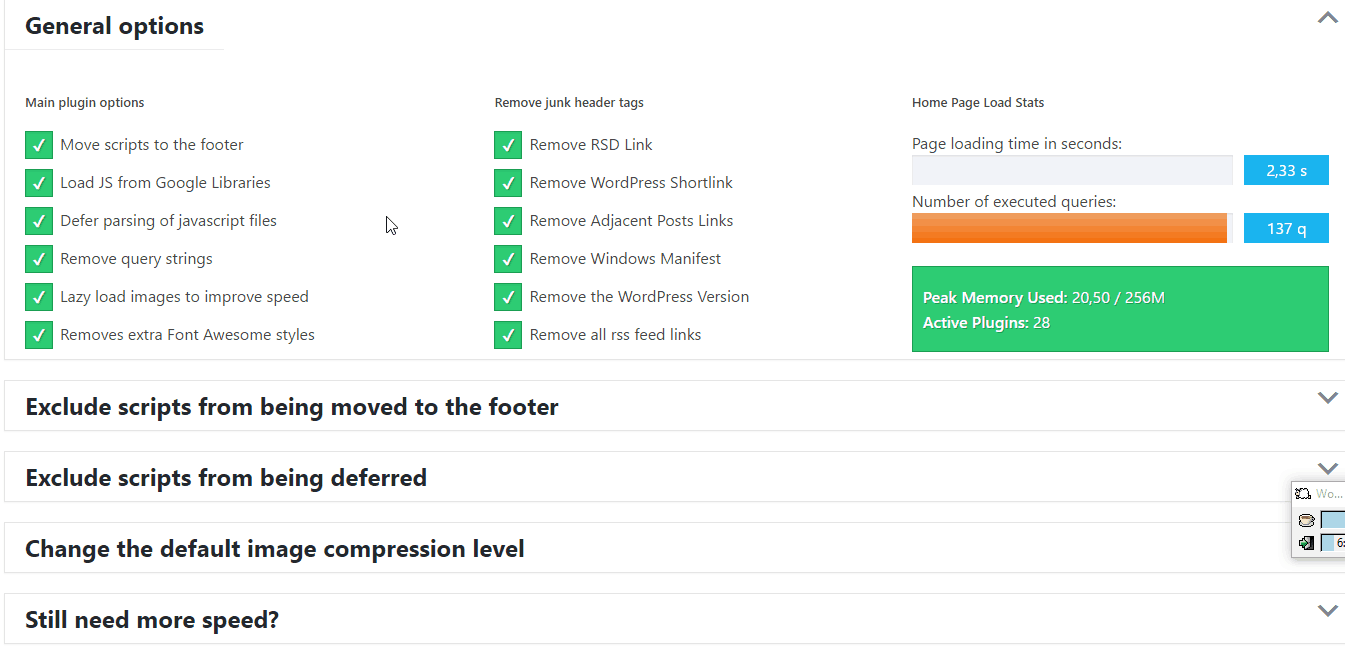
As shown in the picture, this plugin helps you to solve speed related problems:
Move script down to footer
- Download JS from Google’s directory
- Defer the interpretation of Javasscript
- Remove query string
- Delayed image loading to improve speed
- Remove the Font Awesome style if you use one.
With javascript optimization plugins, you should check to see if your website performance is affected.
7. Add Expires Headers
This is an entry in GTMetrix’s YSlow tab. In this section, most of the sites have low scores. Most cache plugins will solve this problem. But if they don’t work you can add the following code at the top of .htaccess (remember to copy this file before editing)
Note : You can also refer to Far Future Expiry Header plugin for this feature.
## EXPIRES CACHING ##<br><ifmodule mod_expires.c=""><br>ExpiresActive On<br>ExpiresByType image/jpg "access 1 year"<br>ExpiresByType image/jpeg "access 1 year"<br>ExpiresByType image/gif "access 1 year"<br>ExpiresByType image/png "access 1 year"<br>ExpiresByType text/css "access 1 month"<br>ExpiresByType text/html "access 1 month"<br>ExpiresByType application/pdf "access 1 month"<br>ExpiresByType text/x-javascript "access 1 month"<br>ExpiresByType application/x-shockwave-flash "access 1 month"<br>ExpiresByType image/x-icon "access 1 year"<br>ExpiresDefault "access 1 month"<br></ifmodule><br>## EXPIRES CACHING ##
Note : When you join affiliate marketing, they often give you banners with pre-existing codes. You only copy this code to your website for marketing. One problem with this method, the image for the banner is often saved outside of your website. This affects site speed as it takes time to connect to an external site to load images.
In the example below, I have a lot of banner images of Masoffer (the leading affiliate marketing network in Vietnam) causing the ” Add expires headers ” problem.
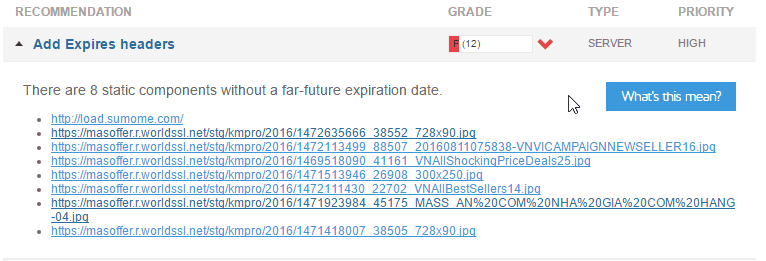
To solve this problem, you should download the banner image and upload it to the website, and replace the external url with the url on your website.
This way has helped me to improve website speed a lot.
8. Remove Query Strings from Static Resources
This is also the error that many websites get when testing on GTMetrix.

As you know, caching static content like CSS and Javascript is key in speeding up web loading. The query string (query string, URL with the ending ?, &) prevents caching. So you should solve the problem to improve site speed.
So how to solve this problem?
Here are the solutions you can try:
Solution 1
If you are using W3 Total Cache, make sure that the option “ Prevent caching of objects after settings change e ” is unchecked. You can find this option under Performance -> Browser Cache
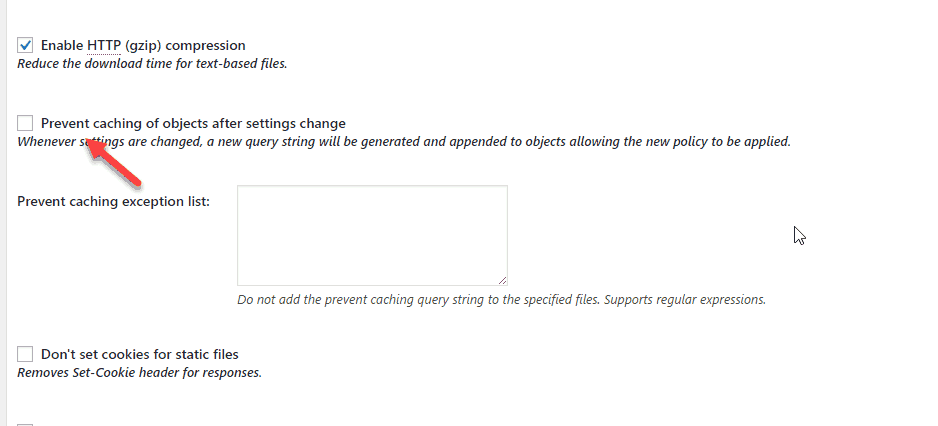
If you’re using WP Rocket, make sure the Remove query string from static resource section in the Advanced Options tab is checked.

Solution 2
If you know the code, add the following code to your functions.php
function _remove_script_version( $src ){
$parts = explode( '?ver', $src );
return $parts[0];
}
add_filter( 'script_loader_src', '_remove_script_version', 15, 1 );
add_filter( 'style_loader_src', '_remove_script_version', 15, 1 );
Solution 3
You install the Speed Booster Pack plugin . As I mentioned above, this plugin has a “ Remove Query Strings ” option that also solves this problem.
Alternative plugin : QueryString remover
9. Run WP-Optimize to remove junk files
The WP-Optimize plugin helps you to remove spam folders, trackbacks and pingpacks, as well as thousands of versions of your posts due to WordPress’ version storage mechanism.
They are all junk files that you should periodically delete.
First, you install the plugin. You now have a new menu called WP-Optimize. Click on it and you will see the cleaning options screen as below:

The red options you choose only when you are sure you understand what it means. Ideally, you should back up your database before cleaning.
A few alternatives : WP Rocket (Database tab), WP Sweep , WP-DbManager
10. Turn off trackbacks and pingbacks
This feature helps to communicate between websites. But they also affect the speed of the website. By default WordPress enables them. Therefore, you go to Settings -> Discussion , and uncheck the option as below:

11. Delete unused themes
As you build your website, you can install multiple themes to choose the best one. But you should keep only the one you are using. The ones you don’t use should be deleted.
You use FTP, go to /wp-content/themes and delete them. You can use the ManageWP tool to remove themes easily.
12. Cache gravatar images
When a person leaves a comment on your site, each of their Gravatar images sends a request to the Gravatar site. Imagine thousands of people posting comments on your site.
Sure the site speed will slow down. One best plugin that solves this problem is NIX Gravatar Cache .
After installing the plugin, go to Settings -> NIX Gravatar Cache . And turn on “ Activate Cache Gravator ” and you are done.

13. Combine external CSS and Javascript
When you test your site speed on Pingdom you may notice a very low score for the “ Combine external CSS ” section.
This is because you use multiple individual css files. When these files are grouped you will improve the page loading speed.
A few plugins that can help you:
- Using WP Rocket’s File Optimization feature
- JS CSS Script Optimizer
- Minqueue
- Autoptimize
- Better WordPress Minify
- Fast Velocity Minify
Note : The feature of optimizing and combining CSS and Javscript files can make your website not work properly. So you need to test carefully before using.
I used to use js-css-script optimizer and found it very effective. After installation, go to Settings -> Script Optimizer to see configuration details.
The default configuration is already optimized. You just need to re-run the site to see if there are any problems. In my case, I had to select “ Minify by Steve Clay ” in the Javascripts Minifier section to avoid some functions on the website not working.

Read more:
How to reduce CSS and Javascript file size in WordPress
How to fix render-blocking javascript and css in WordPress
14. Reduce the delay when redirecting
When you type a website address in your browser, say http://yourdomain.com, one of two things will happen.
Or your page will be loaded. Or your page will redirect to http://www.yourdomain.com. If the first possibility occurs, try the opposite, enter http://www.yourdomain.com, you will see it redirect to http://yourdomain.com
Such a redirect can greatly affect the page load speed. Pingdom has proven it to you
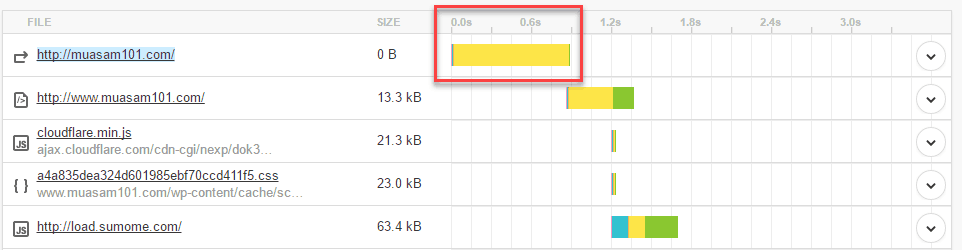
In the image above, I checked a website installed with the address www (configured in Settings -> General ). So when testing Pingdom with the non-www version, a redirect occurs.
So why did the redirect take so long?
In fact, WordPress redirects users to the correct version of the URL much slower than the host.
Therefore, we configure this redirection in the .htaccess file.
To edit this file, you FTP to the host, open the file .htaccess
If your site redirects to www, add the following:
RewriteEngine On
RewriteCond %{HTTP_HOST} !^www.
RewriteRule ^(.*)$ http://www.%{HTTP_HOST}/ [R=301,L]
If your site redirects to no www, add the following:
RewriteEngine On
RewriteCond %{HTTP_HOST} !^my-domain.com$ [NC]
RewriteRule ^(.*)$ http://my-domain.com/ [R=301,L]
Remember to change my-domain to your domain name. Finish editing and save the .htacess file, go back to check on Pingdom. You will be surprised with the results you get

15. Use a content delivery network (CDN)
CDN is a network of servers scattered around the world. They help cache static content for your website. Therefore, the website will have a fast response time for guests in a geographical location far from where the server you are hosting the website is located.

If your website is aimed at users around the world or you buy hosting with a location outside of Vietnam, using a CDN is almost mandatory. CloudFlare is the CDN service I recommend you try.
If you want to use a paid service, you can refer to MaxCDN or KeyCDN
16. Using Gzip
Gzip is a compression technique that reduces the size of web pages, thus improving site speed. Most cache plugins have Gzip compression enabled.
Or you can manually add the following code to your .htaccess
AddOutputFilterByType DEFLATE text/plain
AddOutputFilterByType DEFLATE text/html
AddOutputFilterByType DEFLATE text/xml
AddOutputFilterByType DEFLATE text/css
AddOutputFilterByType DEFLATE application/xml
AddOutputFilterByType DEFLATE application/xhtml+xml
AddOutputFilterByType DEFLATE application/rss+xml
AddOutputFilterByType DEFLATE application/javascript
AddOutputFilterByType DEFLATE application/x-javascript
17. Use Lazy Loading
Delayed loading of photos or videos reduces the number of HTTP requests and also improves site speed. If you use WP Rocket, there is no need to install another plugin because it has built-in delay loading.
Many current themes like MyThemeShop also have a built-in image delay function. If your theme does not have this feature and you do not use WP Rocket, here are a few plugins that you can refer to:
- BJ Lazy Load
- Lazy Load
- a3 lazy loading
18. Limit post revisions
Post revision makes it easy to rollback a post to a previous version. But maintaining too many post revisions can slow down your website.
You can easily limit the number of revisions WordPress keeps per post. Simply add the following line of code to your wp-config.php file:
define( 'WP_POST_REVISIONS', 4 ); 19. Prevent image hotlinking
If you create valuable content, sooner or later your content can be stolen by a visitor.
A common practice is that other websites display your photos directly using your URL instead of uploading them to their host. As a result they steal your hosting bandwidth.
To handle this situation, I have a detailed article on how to prevent image hotlinking .
When you test your website speed on some tools like Pingdom, chances are your website will get this error.
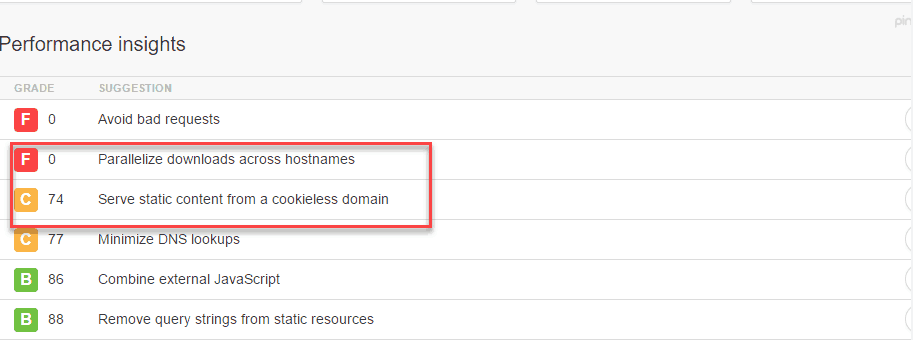
About this error, you can refer to two English articles: this article and this article . Basically this error is caused by your website making too many requests to static documents such as images, javascript or css. Meanwhile, the browser only supports handling a certain number of concurrent connections to a domain.
So if your website makes too many requests, it will lead to a delay in the loading process of the website.
Another point when your website makes a request to a static resource, it should not be sent with a cookie. This is unnecessary and also affects website speed.
To fix these errors we will use domain sharding technique . For details, review the 2 links I mentioned above to better understand the technique and its advantages and disadvantages. Below I will guide you step by step how to implement this technique.
1. Create subdomain in cPanel Hosting
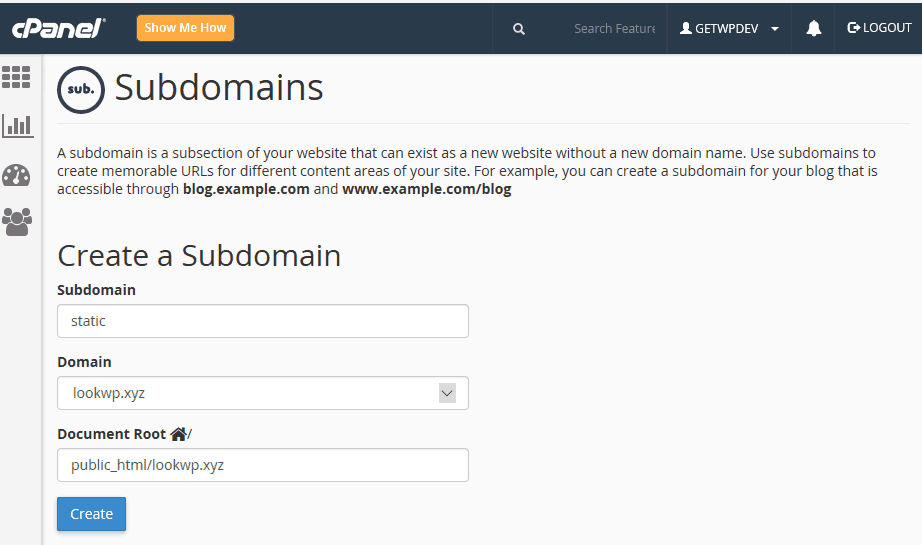
You just need to note that the Document Root section you point to is the correct source code directory of the domain or website you are optimizing. Here I am creating a subdomain for an add-on domain.
You must wait for the subdomain to be accessible on the browser before continuing with the following steps
2. Update DNS
Here I use CloudFlare as an intermediate DNS, so I will create a CNAME record for the subdomain as below:

You in wp-config file and add this line of code. Replace yourdomain with your domain name
define(‘COOKIE_DOMAIN’, ‘www.yourdomain.com’);
4. Configure WP Rocket plugin to use subdomain to handle static resource requests
You go to the CDN section screen of the WP Rocket plugin’s configuration screen and make the change as shown below. Note that my website has created 2 subdomains. You should limit the number of subdomains reasonably.
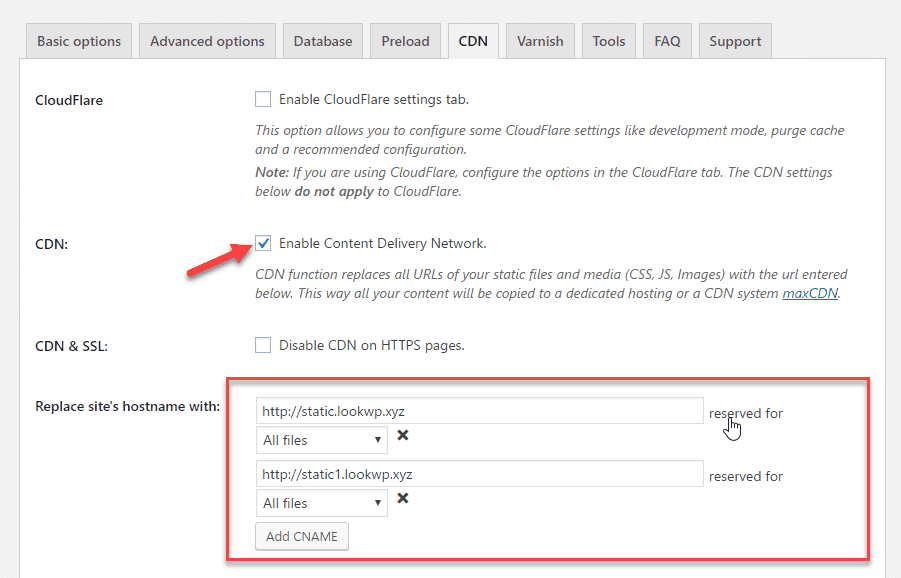
It’s done. Now you just need to test again and see your results.
Epilogue
So you have in hand many solutions to speed up WordPress. If you are not satisfied with the speed of your website, start speeding it up.
If you know any techniques to improve WordPress website speed effectively? I’d be happy if you could share them in the comments section below.
Credit: icon made by free pik from www.flaticon.com


