


Comments are an important communication channel between you and your readers.
In addition, comments also assess the popularity of a website.
The more popular the site, the more comments it gets.
WordPress started out as a blogging platform. So it is equipped with a very powerful commenting system.
In this article, you will learn how to manage comments in WordPress.
Contents
Comments Feature in WordPress
The image below is the WordPress comment submission interface displayed below the posts
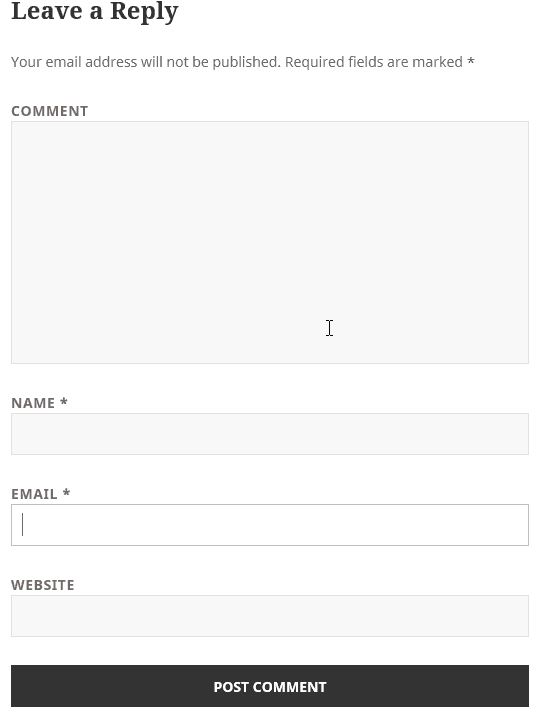
Comment submission interface
Thus, WordPress will ask readers to enter Name (Name), Email, Website to be able to submit comments.
By default, when a reader submits a comment, WordPress will put the comment into pending mode. You will receive an email notifying you of a new comment.
Manage comments
To manage comments, go to the comments section. At this point, the comment management screen appears. On this screen you can Approve, or mark the comment as Spam, delete the comment, even edit the comment.
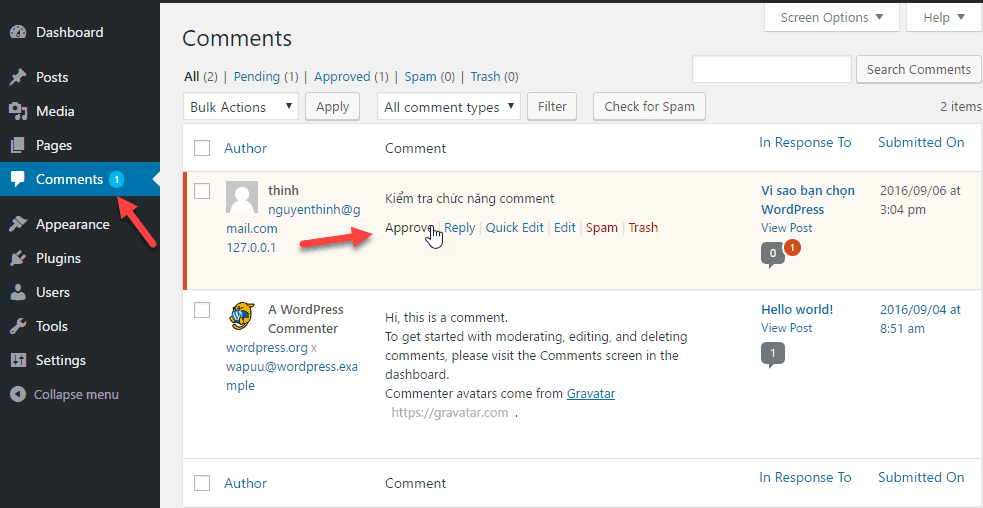
Comment management interface
To manage a comment, you hover over a comment.
You now have several options:
If you find the comment okay, hit the Approve button so anyone reading the post can see the comment.
Otherwise you can delete it by clicking the Spam or Trash button.
In case you want readers’ comments to be displayed immediately, you can go to Settings->Discussion and uncheck the 2 options in the Before a comment appears section

Note : you can manage comments right in the Dashboard home page interface, in the Activity block

Manage comments from the Dashboard homepage
Control sensitive words when commenting
You go to Setting -> D iscussion . In the Comment Blacklist field, enter the words that you do not want to appear in the comments of the readers.

Avatar showing in comments
By default WordPress uses avatars from http://gravatar.com to display avatars. If you don’t have an account here, WordPress will display the default avatar.
Gravatar stands for the words Globally Recognized Avatar. This is an online service that provides users with free avatars. These avatars link to their email. Whenever you comment on a WordPress website with a Gravatar registered email, WordPress will get the avatar associated with that email to display in the comment section.
If you want to have your own avatar, register an account on gravatar. Then add the email to attach the avatar and upload the avatar from the computer.
Only one note is that your email at Users must match the email you registered with your avatar.
Spam prevention
To prevent spam in WordPress, you should install the Akismet plugin according to the following instructions. Akismet is very effective at stopping spam comments before they reach you for moderation.
Note : You can turn off commenting on a separate Post. In the Post editing screen, you access Screen Options, select Discussion. When the Discussion box appears, uncheck Allow comments.
Epilogue
So, you already know how to manage comments in WordPress.
Comments are an important tool to help you connect directly with your readers. From there you can build relationships, help and increase credibility with your readers.
Those are the factors that contribute to the success of a website.
If you are having trouble with WordPress’ commenting system, leave a comment below.


