


Today’s article, I will guide in detail how to install the theme for those who are new to WordPress.
There are currently 3 popular methods to install themes in WordPress.
We start with the first method.
Install the theme using the theme search function on the admin page
If you want to install a theme from the massive theme repository on WordPress.com , this is the fastest and easiest way.
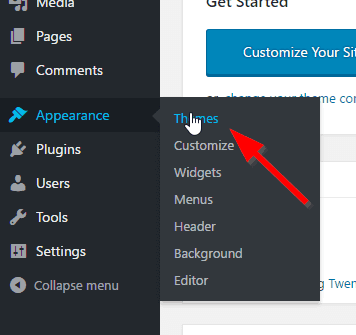
First, you access the WordPress admin page. Next, click on Appearance >> Themes .
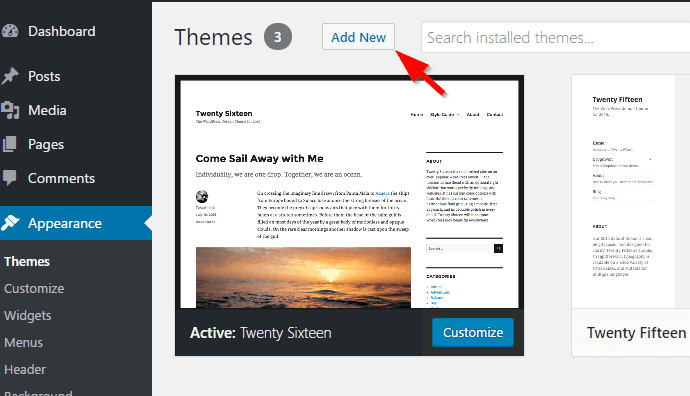
Then you click on the Add New button
The next screen allows you to search for the theme you want to install. If you already know the name of the theme you intend to install, you can enter the search box and type the theme name. In the other case, you can use the available filters to find the theme that meets your requirements

As soon as you find the theme you want, hover over the theme. At this point, the Install and Preview buttons will appear. You can click Preview to preview how the theme will look. Remember that the preview feature sometimes does not display the correct and full features of the theme.

Now, you will click on the Install button to proceed with the theme installation. As soon as the installation is done, you will see the Active and Live Preview buttons .
Click the Active button to activate and use the theme for the site.

Depending on the theme, you can customize the theme through Apperance->Customize, or have your own theme customization panel.
Install the Theme using the upload function available in the admin page
Paid themes you purchase from a third party will not be available on WordPress.com. In this case, after buying the theme, you will visit the website of the theme company to download the theme file in zip format.
Now, to install the theme, you will use the upload function.
First you have to have the zip file of the theme you need to install. In my case, I downloaded the Beginner theme of Theme Junkies.

Then go to Appearance >> Themes again and click on the same Add New button in the method above. Next, you click on the U upload Themes button :

Finally, select the zip file of the theme you downloaded from the previous step. Then click on the Install Now button . After installation is complete, you activate the theme to use.
Install the theme by uploading it to the wp-content/themes folder
This method is used when you cannot do the above two ways.
You extract the zip file of the theme. Then upload the entire folder to wp-content/themes on the host using the FTP client software.
After the upload is complete, go to Appearance->Themes to activate because the theme is already displayed in it.
Note : If you have a blog on WordPress.org, you will not see the Add New or Upload Theme button . Regarding the difference between WordPress.org and WordPress.com, see details here .
Plus, once you install the theme, it won’t immediately look like the demo. You have to customize a lot.
So with this tutorial you already know how to install theme in WordPress. If you found the article useful, please share it with others with similar interests.
If you have trouble installing the theme, please leave a comment below.


