


When it comes to WordPress backup and restore, you’ll probably use plugins.
Because it is the fastest and easiest way.
But for some reason those plugins don’t work as expected.
In such a situation, the manual backup and restore technique will come into play.
In this article, I will show you how to backup and restore WordPress data manually. Here we go.
You may be interested: How to backup website to Google Drive
Contents
How to manually backup WordPress website on host?
To manually backup your WordPress website, you need to perform 2 steps: backup the source code and backup the database. That is, we have 2 backup files: a compressed source code file and a sql file containing the database.
Step 1: Backup the source code
To backup the source code, log in to cPanel and access the File Manager.
Then access the source code you need to backup. Press the Select All button to select all and select Compress to compress the data
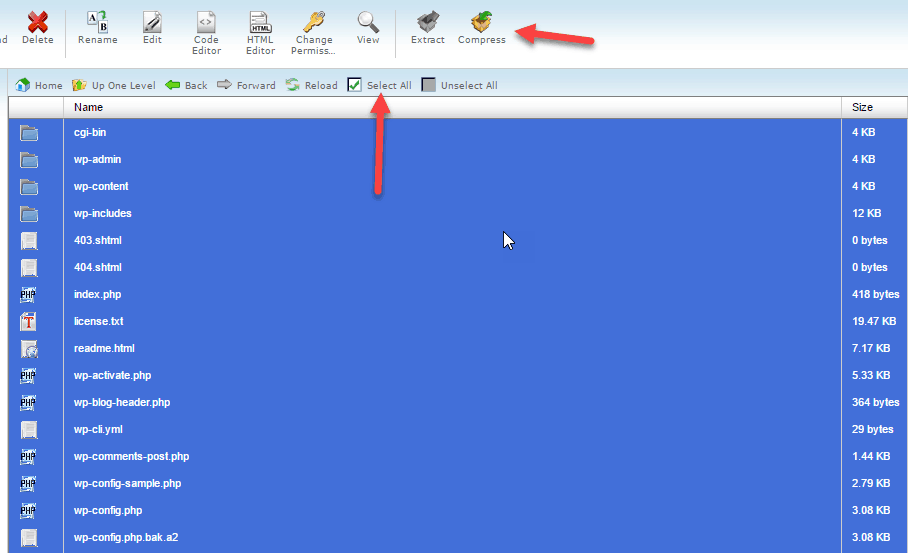
Compress all website source code
The Compress screen appears. You should choose Zip or Gzip compression. Name the compressed file and press the Compress Files(s) button to compress the entire source code
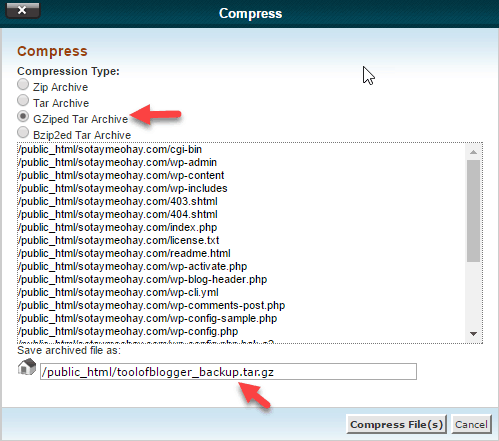
Select the compression format and name the compressed file
Now you have the entire source code archive. Please download it to your computer.
Step 2: Backup database
To back up the database, you access the database by going to phpMyAdmin in cPanel.
Select the database you need to back up.
Select Export on the toolbar

Select export to export the sql database file
On the next screen, you just need to press the Go button to start downloading the sql file containing your database. You copy the sql file in with the above source code compressed file.
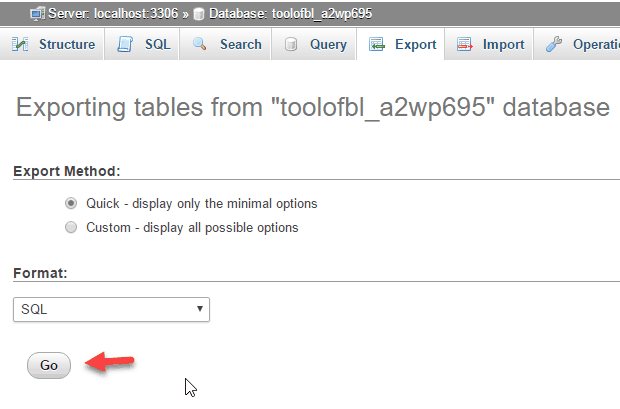
Click Go to start creating the database SQL file
So you have completed the process of manually backing up all WordPress website data.
Manually Recover WordPress Data
To recover data you need the following 2 files
- A compressed file containing the source code of the website
- An sql file containing the website’s database
A few notes before you start data recovery:
You have to create a completely new database. In addition, the directory to restore source code on the host must be completely empty.
Step 1: Restore the source code
You use the FileManager in cPanel to upload the compressed file containing the source code to the host. After uploading, select the compressed file and click Extract .
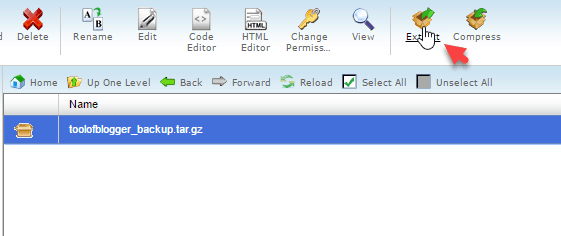
Select the compressed file and click Extract
After extracting, you can delete the compressed file.
Now, open the wp – config file to configure the database connection to match the new database:
define('DB_NAME', 'Tên của database mới’');
/** MySQL database username */
define('DB_USER', 'Username cho database’');
/** MySQL database password */
define('DB_PASSWORD', 'Password tương ứng');
Step 2: Restore data
Use phpMyAdmin to access the database.
Select the database to restore.
Next choose import and upload the sql file containing the database. Finally you click the Go button , the other options you keep the same.
After the import is successful, you need to check that the database prefix (prefix) of the tables matches the $table_prefix section of wp- config .php . The two sides must match to run
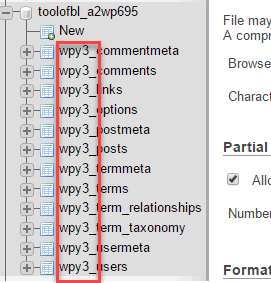
Check table prefix
Step 3: Update Permalink
After restoring, go to Settings -> Permalinks and press the Save Changes button. That’s it, you have completed the data recovery process.
As always, if you have any problems please leave a comment below.
Icon made by http://www.flaticon.com/authors/freepik from www.flaticon.com


