


Recently many people have added reading status bar to their website.
So what is the reading status bar?
And what benefits does it bring to the website?
The reading status bar is a visual way for readers to see how far they have read the article and how much is left to complete.
As soon as the reader scrolls down the article, the status bar becomes active. When the reader completes the article, the reading status bar will be filled.
This cool feature improves reader engagement, and helps readers manage their time more effectively.
If you also want to add a left reading bar to your website, WP Time To Read is the best paid plugin to help you do that.
This plugin is a product ofMyThemeShop , the leading WordPress theme and plugin provider today.

In this article, I will guide you to install and use the plugin.
Contents
Outstanding features of the plugin
WP Time To Read has 2 main functions.
The first shows the estimated reading time for an article. This time is calculated based on 2 values of Words per minute (min and max) that you enter in the setting. The plugin will multiply those 2 values by the word count of the article to calculate the estimated reading time.
On the screen, the plugin will display the average estimated reading time or the estimated reading time period for an article.
You can choose the display you want in the settings. I will guide you in detail below.
The second function is to show the status bar on top. This status bar will be filled when the user scrolls all the way through the page.
Instructions for using the plugin WP Time To Read
First you need to download the latest version of the plugin in zip format. Then install and activate the plugin as usual.

As soon as the plugin is installed, go to Settings -> Time To Read to configure the plugin. On this screen, you select Enable Time To Read and Enable Scroll Progress Bar to use the two main functions of the plugin.

Using Time To Read
When you select Enable Time To Read , you will see more options for this function. First you can change the word s per minute to suit your readers. From these 2 numbers, the plugin will calculate the average reading time of the article by multiplying by the number of words in the article.

In addition, you can control the display of the time interval to read an article (eg 10-12 minutes) by entering a value in the Min-max interval above option . If you want to always display the read interval enter 0.
Otherwise, you enter -1 to not display the time period. The plugin will then display the average reading time to the reader.
Or you can enter any number. If this average reading time is greater than the number you entered, the reading interval will be displayed.
You can change the text displayed on the screen in the Format section.
Finally, you can use a different display format if the average reading time value is lower than the value you entered.
After you are satisfied with the plugin’s set price, remember to click the Update Options button to save the configuration.
The next task is to display the estimated reading time to the screen. You can choose 2 ways.
The simplest way is to insert the shortcode into any individual post or page. But this way is not very flexible.
Usually you will insert the template tag into the source code of the theme. However, this method requires you to be able to edit the theme’s code.
In the example below, I will display Time To Read next to the article’s metadata information.
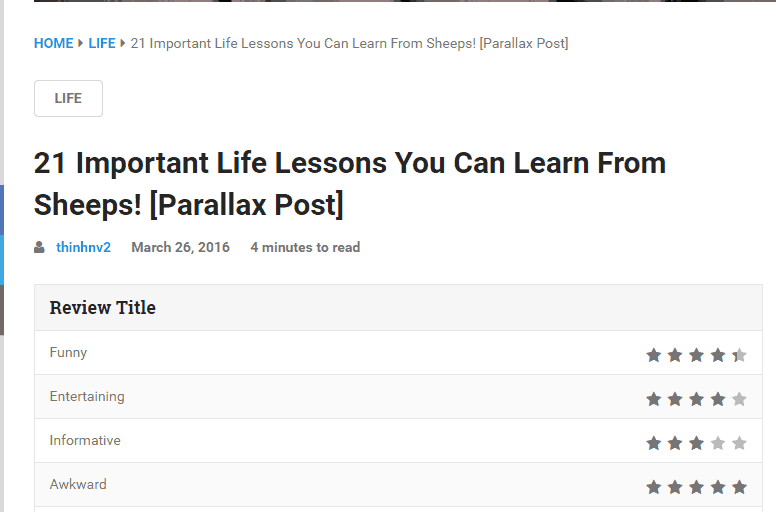
Using Enable Scroll Propress Bar
As soon as you select this option, you will see more options. By default the status bar will be displayed in individual posts.
If you want it to show on the homepage or archive, select the corresponding option. You can also change the status bar color to your liking.

Status bar for good display on phone screen:

Now you know how to add the reading status bar to the website. With the WP Time To Read plugin, you can also show the estimated reading time to the writer.


