


The year 2017 has ended.
So which event related to WordPress made people sell the most excited last year?
For me and many other bloggers who love WordPress, Gutenberg is the answer.
Indeed, Gutenberg has and will consume a lot of ink from bloggers writing about WordPress.
Even if you already know a little about Gutenberg and are on the stonewall side, there’s a fact we all have to accept:
Gutenberg will soon be part of the WordPress core. The only problem is time. Most likely this year.
And if you don’t know what the hell Gutenberg is, today’s Gutenberg tutorial will help you understand Gutenberg and how to use it.
Armed with this knowledge early on, you won’t be surprised by a revolutionary change in WordPress.
Contents
What is Gutenberg?
In short:
Gutenberg is the WordPress TinyMCE Editor replacement (the editor you are using in WordPress currently).
This is the interface of the WordPress TinyMCE that we are familiar with now
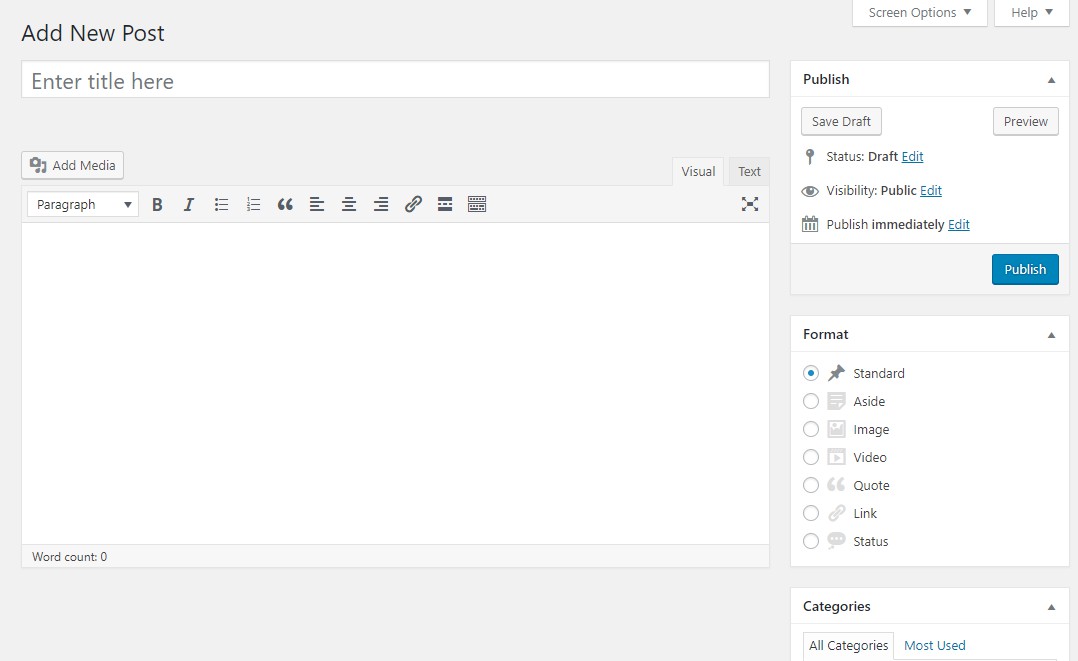
Here’s what the new Gutenberg editor looks like:

The problem is:
Gutenberg is not a simple change of interface. It’s about changing the way you compose content in WordPress. This greatly affects theme and plugin developers.
With Gutenberg, the method of creating content will be based on blocks (more explained below). Gutenberg’s goal is to give you a powerful and flexible tool to build an entire website including landing pages and other important content. Meaning: you don’t just use Gutenberg to create simple content.
When did Gutenberg become part of WordPress?
As planned, Gutenberg will become an official part of WordPress core when WordPress 5.0 is released.
So when will WordPress 5.0 be released? We still don’t know the exact time. Most likely this year 2018.
However, you can install and use WordPress Gutenberg through a plugin.
You need to know that:
Gutenberg is still in beta so don’t use this plugin on your website. The purpose of the Gutenberg plugin is to make it easy to evaluate. Thanks to that, the development team can perfect the product from the user’s experience.
How Gutenberg Works
Basically, Gutenberg is a block-based working editor.
In other words, before, you would have an editing frame to enter content and edit like Word. But with Gutenberg you will work with individual blocks.
These blocks allow you to create complex designs. This you cannot do with the current WordPress editor.
So what is a block?
Blocks in Gutenberg can be anything. For example you might have the following blocks:
- Simple block of text.
- Image block
- Video embed (video embed block)
- Button
- Widget (you can use widget like above sidebar)
- Board
The developers can also create additional blocks for you to use through the plugin.
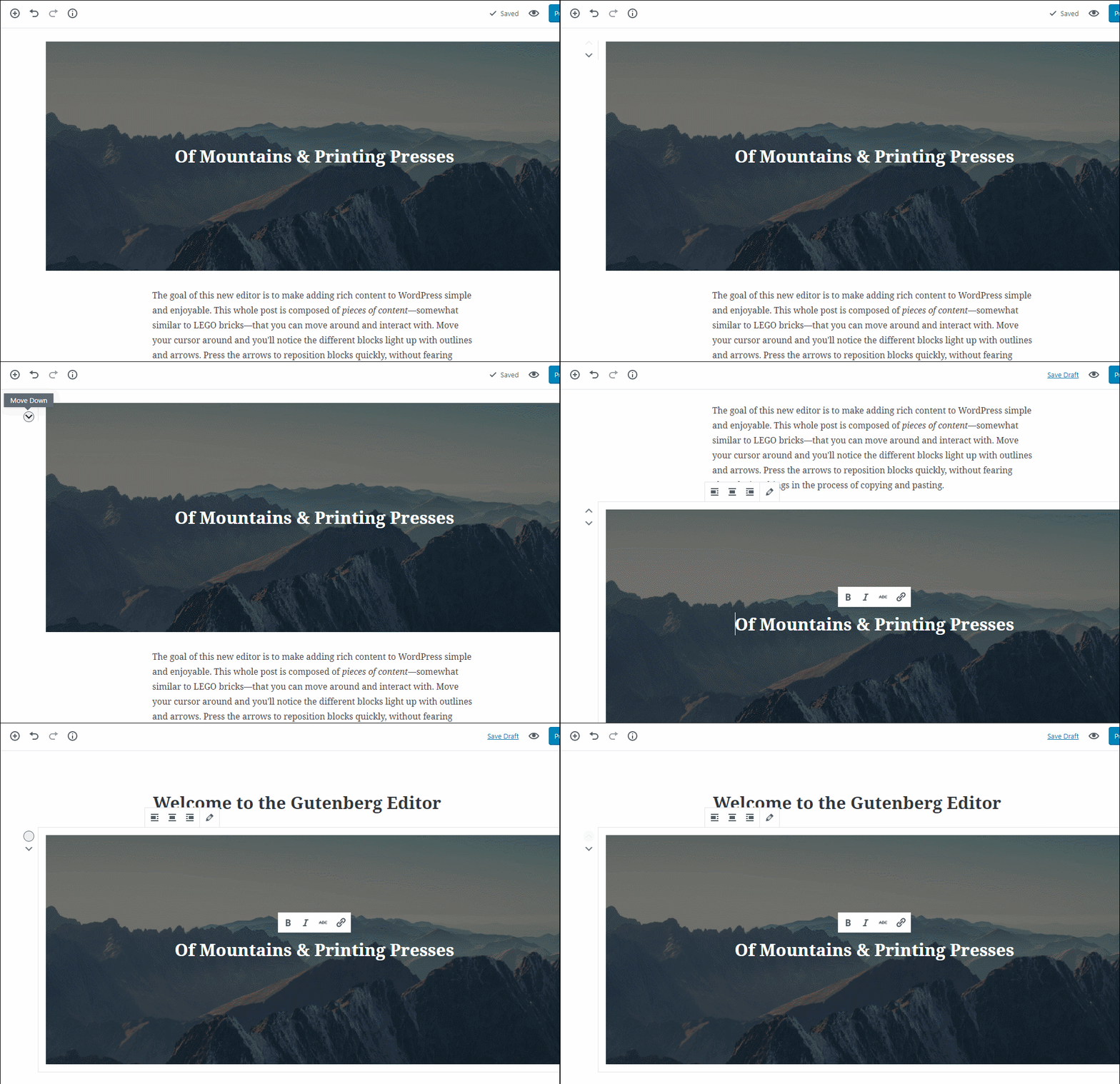
Each block in Gutenberg is a standalone entity that you can customize individually.
For example, here is a post with 2 blocks: text and image. You can arrange two blocks by clicking the arrow button.
So Gutenberg is a page builder right?
If you are familiar with the page builder in WordPress, you may have noticed that Gutenberg looks like a page builder .
So is Gutenberg a kind of page builder?
Not completely. At least for the time being.
Gutenberg allows you to easily style the content of a standard post or page. But it is not a 1:1 replacement for page builder.
Gutenberg is still missing two important basic things:
- Pillar
- Drag and Drop
However, Gutenberg eliminates the need for a page builder if you want to build simple content. It creates a unified way to create slightly more complex layouts in WordPress.
But if you need to build pages with complex layouts, like landing pages, you still need a page builder. Gutenberg still needs a lot of time to replace the best page builder out there. Perhaps this task also seems very challenging.
How to install and use Gutenberg
Like me Gutenberg is currently released as a plugin for everyone to test. However, it’s still in beta so you’re just messing around. Do not use it on the real website.
Installing this plugin is the same as installing another plugin on the WordPress Repository.
Once installed, you can see the Gutenberg interface by going to Posts -> Add New :

Gutenberg is designed to work with any WordPress theme. However, at this point choosing a theme compatible with Gutenberg helps you have the best experience.
First, these themes provide built-in styling for Gutenberg’s blocks. Moreover, the theme also loads the style in the editor. So you can see your block formatting results as you build your content without clicking Preview. (Like WYSIWYG)
Because Gutenberg has not been officially released yet, there are not many themes that support it yet. You can refer to this theme from Tammie Lister.
Build your first layout using Gutenberg editor
Before we start adding a few blocks, let’s take a look at Gutenberg’s interface in detail:

- (A): allows you to add new blocks
- (B): undo/redo
- (C): access the document settings section including category and tag, avatar like the sidebar in the current WordPress editor.
- (D): when you select a block, this section allows access to settings for the currently selected block.
- (E): allows access to preview post/page being edited.
- (F): As soon as you add the block, this is where you actually work with the content of the post.
How to work with blocks in Gutenberg
To add a new block you just need to click on the icon with the plus sign and select the block you want:
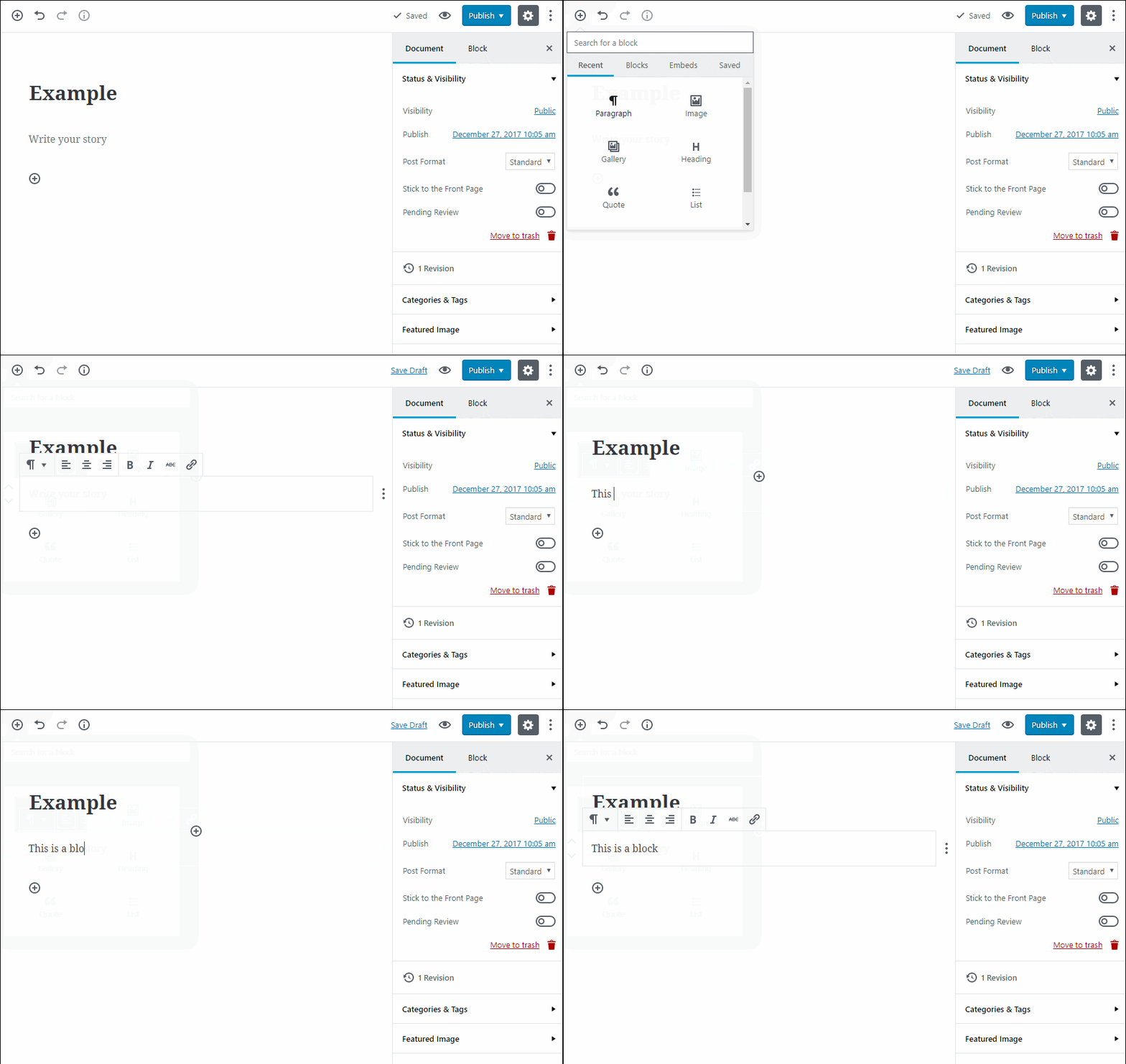
Above you saw how to add a basic paragraph block. But Gutenberg gives you a lot of different blocks grouped into different sections:
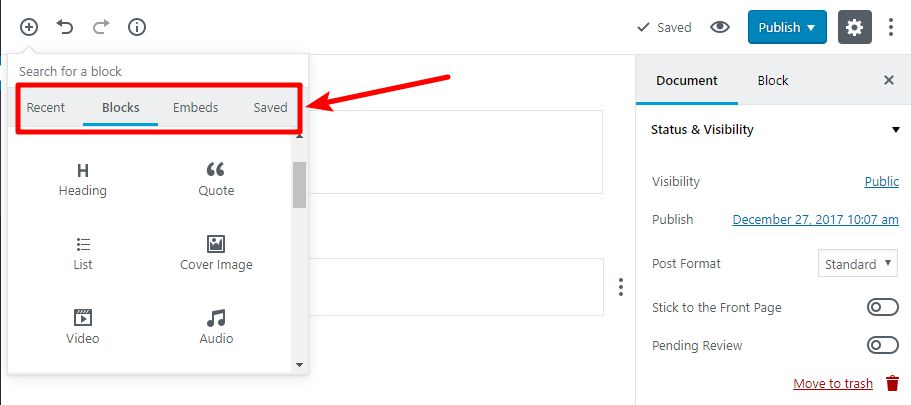
A unique Recent and Saved section gives you easy access to the blocks you use most often.
To access all the blocks, click on the Blocks and Embeds tabs.
On the Blocks tab you will have:
- C ommon Blocks : contains basic blocks such as Image, Paragraph, Heading, Quote…
- Formating : allows you to add pre-formatted content such as Pullquote, Table, Classic ..
- Layout Blocks : including Text Columns (create text into 2 columns), Button, Separator, More..
- Widget : allows you to add shortcode, latest posts (latest posts), category.
In the Embed tab , you can embed content from external sources, including:
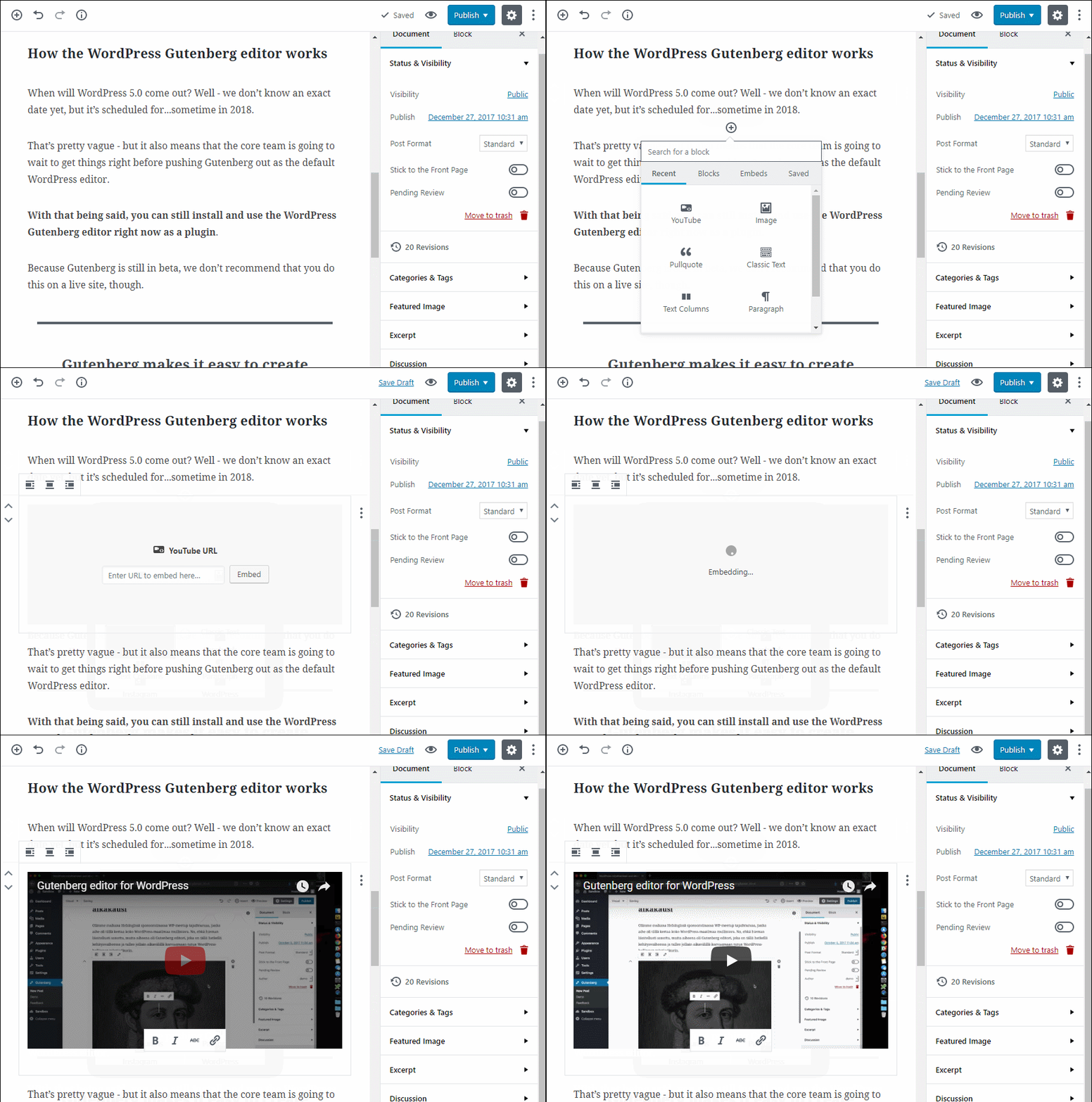
- Youtube
- Instagram
Building basic layouts with Gutenberg
Here we try to build a basic layout including:
- Basic Text
- Picture
- Pull quote
- Embed video from Youtube
By default the text block has been added. Let’s see how to add blocks that aren’t text.
Add block that is not text
Now click on the plus button and add the Image block:
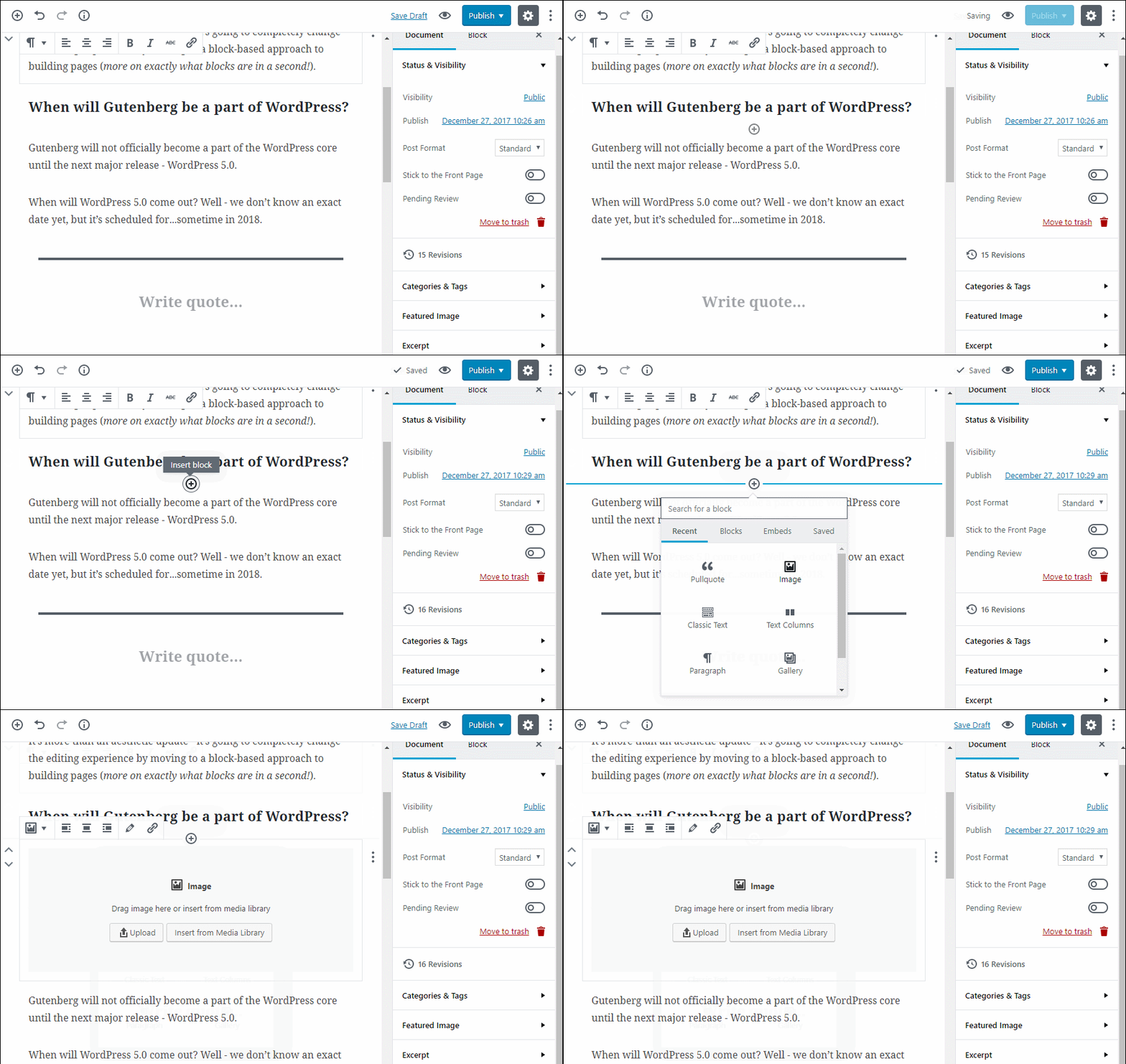
Now you just need to upload an image from your device or insert an existing image from the Media Library:

The image block will display as below:

Now you will insert the Pull Quote block as shown below:

Enter the content for the Pull Quote:

Click on the Embeds tab to insert a Youtube video:
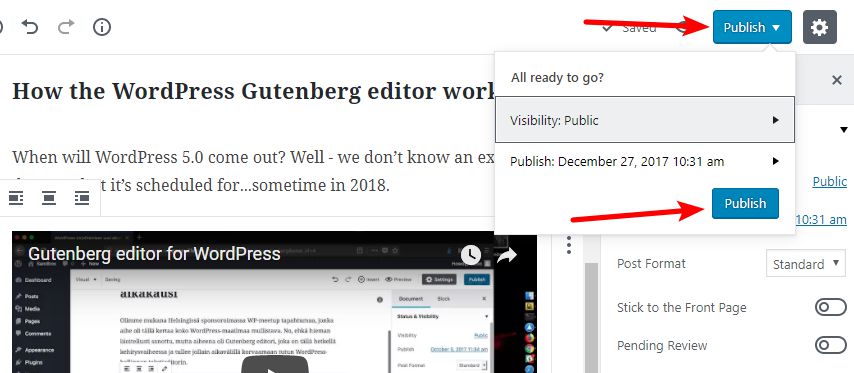
Finally publish the article:
Epilogue
Gutenberg is still being mercilessly stoned at the moment, but it’s still coming soon in WordPress 5.0
In this article, you got to know Gutenberg briefly. You already know the basics of working with Gutenberg.
With this basic guide to using Gutenberg, you will no longer be confused with a brand new editor in WordPress.
Source: CodeInWP


